
What Is the Picture Carousel Tool? Create Multi-Image Swipeable Posts on Facebook
Uploading multiple images to a Facebook post creates a photo album grid -- not a carousel. The images stack vertically or arrange into a collage. There are no individual headlines, no per-card links, no swipe interaction, and no call-to-action buttons. For marketing purposes, the difference between a photo album and a true carousel is significant.
A true Facebook carousel presents each image as a distinct card that users swipe through horizontally. Each card can carry its own headline, description, destination URL, and call-to-action button. The format was originally exclusive to Facebook Ads, but it is now available for organic page posts -- if you know how to create it. Facebook's native page composer still does not offer a "create carousel" button for organic content.
FaceBot's Picture Carousel tool fills that gap. It creates native swipeable carousel posts on any Facebook page, with full control over each card's content, without requiring an ad spend.
How Picture Carousel Posts Work on Facebook#
A carousel post appears in the feed as a single post with a horizontal strip of cards. On mobile, users swipe left to see additional cards. On desktop, users click navigation arrows. Each card occupies the full post width, creating an immersive per-card experience rather than a cramped grid.
What Each Card Contains#
- Image: A custom uploaded image for this specific card
- Headline: Short text displayed below the image (typically 25-40 characters for full visibility)
- Description: Optional supporting text beneath the headline
- Link URL: A unique clickable destination for this card -- each card can link to a different page
- Call-to-Action button: "Learn More," "Shop Now," "Sign Up," or other standard Facebook CTAs
Card Limits#
Facebook supports 2 to 10 cards per carousel post. For organic posts, the practical sweet spot is 3 to 5 cards. Fewer than 3 does not create enough momentum to encourage swiping. More than 5 sees declining completion rates -- most users do not swipe past the fourth or fifth card.
For a comprehensive breakdown of carousel formats including both image and video variants, see the complete carousel creation guide.
Why Picture Carousels Outperform Standard Image Posts#
Engagement Through Interaction#
A single-image post requires no action from the viewer -- they see it, they react (or they don't), and they scroll on. A carousel demands interaction. The visible edge of the next card creates a visual cue that there is more content to see, and the swipe gesture is a low-friction action that users perform instinctively. Each swipe is an engagement signal that tells Facebook's algorithm the content is holding attention.
More Content Per Post#
A single post can carry up to ten images, each with its own message and link. This means you can tell a complete story, showcase an entire product line, or present a step-by-step process without asking your audience to visit ten separate posts. The carousel keeps everything consolidated in one piece of content.
Per-Card Click Tracking#
Because each card has its own link, you can track which cards drive the most clicks. This gives you per-message performance data within a single post -- insight that is impossible with a standard multi-image upload.
Higher Organic Reach#
Facebook's algorithm rewards posts that keep users engaged for longer periods. A 5-card carousel that someone swipes through completely sends a stronger engagement signal than a single-image post that gets a quick like. This extended interaction time can translate to broader organic distribution.
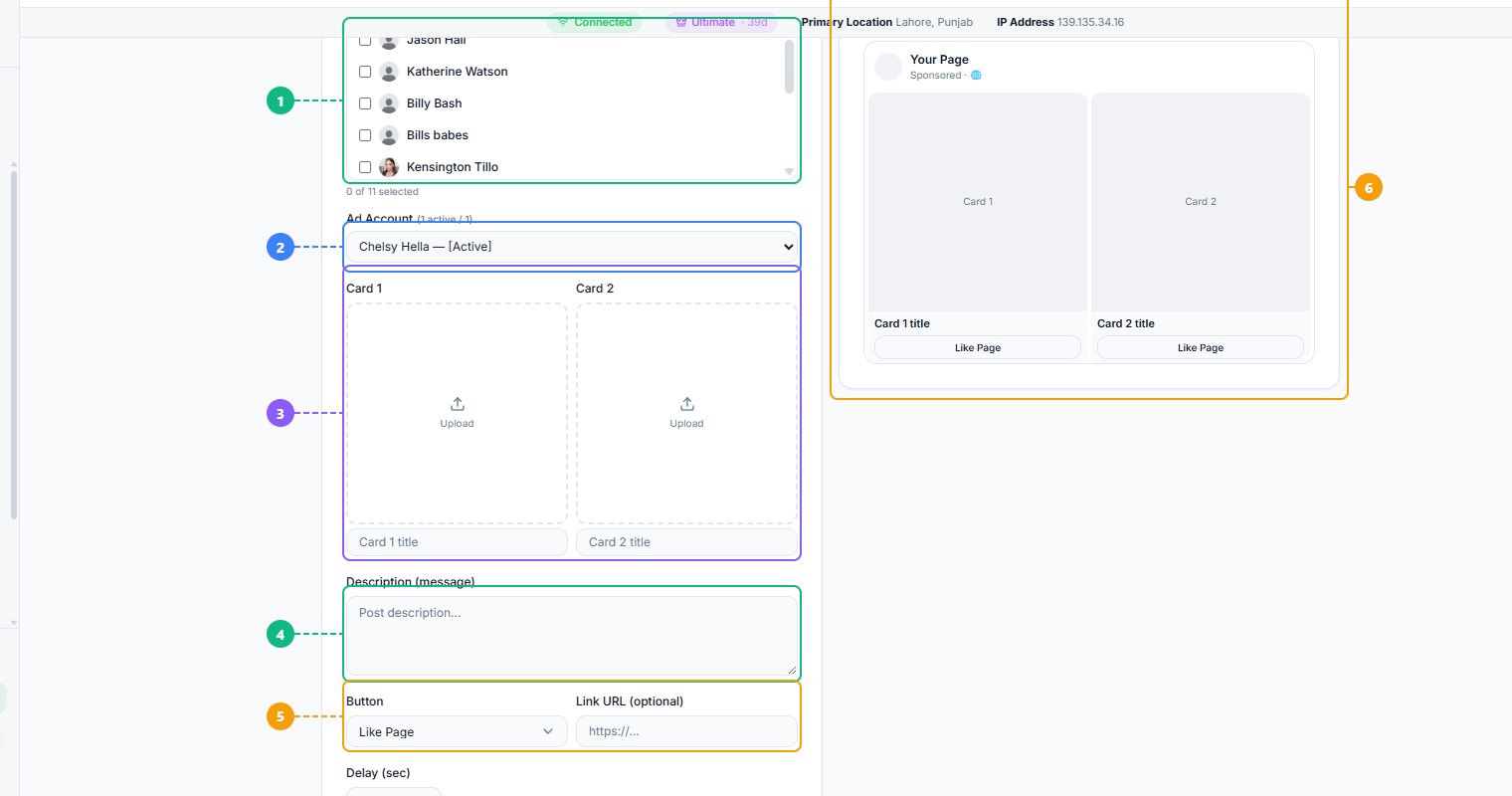
The Picture Carousel tool provides a complete card builder. Select one or more pages to post to using the checkbox list (1), choose your active ad account (2), upload images for each carousel card and set individual card titles (3), write the post description that appears above the carousel (4), select a CTA button type and optional link URL for each card (5), and preview the finished carousel layout with card titles and buttons (6).
Step-by-Step: Creating a Picture Carousel with FaceBot#
Step 1: Select Your Page#
Open the Picture Carousel tool in the FaceBot Content Creation suite. Choose the Facebook page where you want the carousel published.
Step 2: Prepare Your Images#
Before building the carousel, gather and prepare all images:
- Consistent aspect ratio: Use 1:1 (1080x1080) across all cards. Mixing aspect ratios causes inconsistent cropping and a disjointed visual experience.
- Visual coherence: Cards should look like they belong together. Use consistent colors, fonts, backgrounds, or photographic style.
- Standalone clarity: Each card should make sense on its own. Users may see only 2-3 cards if they do not swipe all the way through.
- Sequential logic: Arrange cards in an order that rewards continued swiping -- best content first, but maintain curiosity through the middle cards.
If you are working with existing images that need processing, the image anti-detection tool can help ensure visual uniqueness when repurposing images across multiple posts or campaigns.
Step 3: Add Cards#
For each card in the carousel:
- Upload the image
- Enter the headline (keep it concise -- under 40 characters is ideal)
- Add an optional description
- Paste the destination URL for this card
- Select a call-to-action button
Repeat for each card. You can reorder cards after adding them by dragging to rearrange.
Step 4: Write Post Copy#
The post text that appears above the carousel should serve as a hook that encourages swiping. Effective approaches:
- Ask a question that the carousel cards answer
- Promise a specific number of items ("5 features you did not know about...")
- State a benefit and let the cards deliver proof
Do not repeat the card headlines in the post copy. The post text and the card content should complement each other, not duplicate.
Step 5: Review and Publish#
Preview the carousel to check image rendering, headline display, and link accuracy on each card. Publish immediately or schedule for a specific time.
Practical Use Cases#
Product Showcase#
E-commerce brands can display up to 10 products in a single post, each linking directly to its product page. This is effectively a free product catalog in the Facebook feed. Lead with your best-selling or most eye-catching product on card one.
Feature Walkthrough#
Software companies and SaaS products can use each card to highlight a different feature, with screenshots or custom graphics. Each card links to the relevant feature page or documentation. This is particularly effective for product launches or major updates.
Portfolio Display#
Photographers, designers, and creative professionals can showcase their best work across carousel cards. Each card can link to the full project page on their website, driving portfolio traffic from a single social post.
Educational Content#
Create step-by-step tutorials where each card represents one step. This format works well for recipes, DIY projects, fitness routines, and how-to guides. The sequential nature of the carousel matches the sequential nature of instructions.
Event Promotion#
Promote multiple events, speakers, or sessions from a single post. Each card features one event or speaker with a link to the registration page. Conference organizers and community managers find this particularly effective.
Best Practices#
Design the First Card to Stop Scrolling#
Card one determines whether anyone swipes at all. It needs to be visually compelling and imply that valuable content follows. If the first card does not capture attention, the remaining nine cards are wasted.
Use the Last Card as a CTA#
Reserve the final card for a clear call-to-action. Summarize what the viewer just saw, reinforce the value proposition, and give a direct instruction ("Shop the collection," "Start your free trial," "Download the guide"). Users who swipe to the last card are highly engaged -- reward that engagement with a clear next step.
Maintain Visual Rhythm#
Cards should feel connected but distinct. Use consistent brand colors and typography, but vary the content enough that each card justifies its existence. A carousel where every card looks nearly identical gives users no reason to keep swiping.
Track Per-Card Performance#
After publishing, monitor which cards drive the most clicks. Over time, this data reveals what types of images, headlines, and CTAs resonate with your audience. Use these insights to improve future carousels.
Limitations#
- Pages only. Carousel posts are created for Facebook pages. Personal profiles and groups do not support the carousel format.
- Facebook platform only. This tool creates Facebook-native carousels. The same carousel cannot be cross-posted to Instagram or other platforms directly.
- Image carousels only. This specific tool handles images. For video carousels, FaceBot offers a separate Video Carousel tool. For an overview of all content formats available, see the complete guide to Facebook content creation.
- Organic reach varies. While carousels tend to get higher engagement, organic reach still depends on your page's audience size, posting history, and content quality.
Frequently Asked Questions#
How many images can I include in a Picture Carousel?#
Facebook supports 2 to 10 cards per carousel. For organic posts, 3 to 5 cards is optimal. Going beyond 5 cards is fine for product catalogs, but be aware that completion rates decline as card count increases.
Can each card link to a different URL?#
Yes. This is one of the key advantages of carousels over multi-image posts. Each card has its own independent destination URL and call-to-action button. You could link card one to a product page, card two to a blog post, and card three to a signup form.
What image dimensions work best?#
Square images at 1080x1080 pixels provide the most consistent display across devices. All cards should use the same aspect ratio. Mixing landscape and portrait images in the same carousel results in inconsistent cropping.
Can I edit the carousel after publishing?#
You can edit the post text (caption) after publishing. However, you cannot add, remove, or reorder cards, change card images, or modify card headlines and links after publication. If any card detail is wrong, you need to delete and recreate the post.
How is this different from a Facebook ad carousel?#
The format is identical -- same swipeable cards, same per-card links and CTAs. The difference is distribution. An ad carousel is served to a targeted audience you pay to reach. An organic carousel created through FaceBot's Picture Carousel tool is distributed through your page's normal organic reach. You can boost the organic carousel later if you want to add paid distribution.
Conclusion#
The Picture Carousel is one of the most effective organic post formats on Facebook, and one of the least accessible without specialized tools. Facebook does not make it easy to create carousels outside of Ads Manager, which means most pages default to standard image posts and miss the engagement benefits that carousels provide.
FaceBot's Picture Carousel tool removes that barrier. You get the full carousel format -- individual cards with images, headlines, links, and CTAs -- for organic page posts, with a straightforward creation process.
Create a Picture Carousel post now