
What Is the Video Carousel Tool? Create Multi-Video Swipeable Posts on Facebook
Video carousels combine two of Facebook's highest-performing content elements: video and the carousel format. Each card in the carousel plays its own video clip, and users swipe horizontally to watch additional videos. Every card carries its own headline, description, link, and call-to-action -- making the format ideal for showcasing multiple products, demonstrations, testimonials, or story segments in a single post.
Like image carousels, video carousels were originally restricted to Facebook Ads. They are now available for organic page posts, but Facebook's native page composer does not offer a straightforward way to create them. FaceBot's Video Carousel tool provides that capability: upload multiple videos, configure each card, and publish a native swipeable video carousel to any Facebook page.
Why Video Carousels Deserve Attention#
Video Already Dominates the Feed#
Facebook's algorithm has favored video content for years. Video posts consistently receive higher reach and engagement than static images or text posts. When you combine video with the carousel format, you stack two algorithmic advantages: the engagement signal from video plays plus the engagement signal from swipe interactions.
Each Card Is a Mini Pitch#
A single video post delivers one message. A video carousel delivers up to ten. Each card can feature a different product demo, customer testimonial, feature highlight, or content piece -- all within a single post. Users who engage with the first card and swipe to see more are self-selecting as interested viewers, making each subsequent card more impactful.
Higher Dwell Time#
Dwell time -- how long a user spends looking at your content -- is one of the strongest signals Facebook's algorithm uses for distribution. A 5-card video carousel where each video is 15-30 seconds long can hold attention for over two minutes. A single video post would need to be exceptionally compelling to achieve the same dwell time.
Per-Card Links and Analytics#
Like image carousels, each card in a video carousel can link to a different URL. This means you can drive traffic to multiple destinations from a single post while tracking which videos generate the most clicks. For e-commerce, this is essentially a free video product catalog.
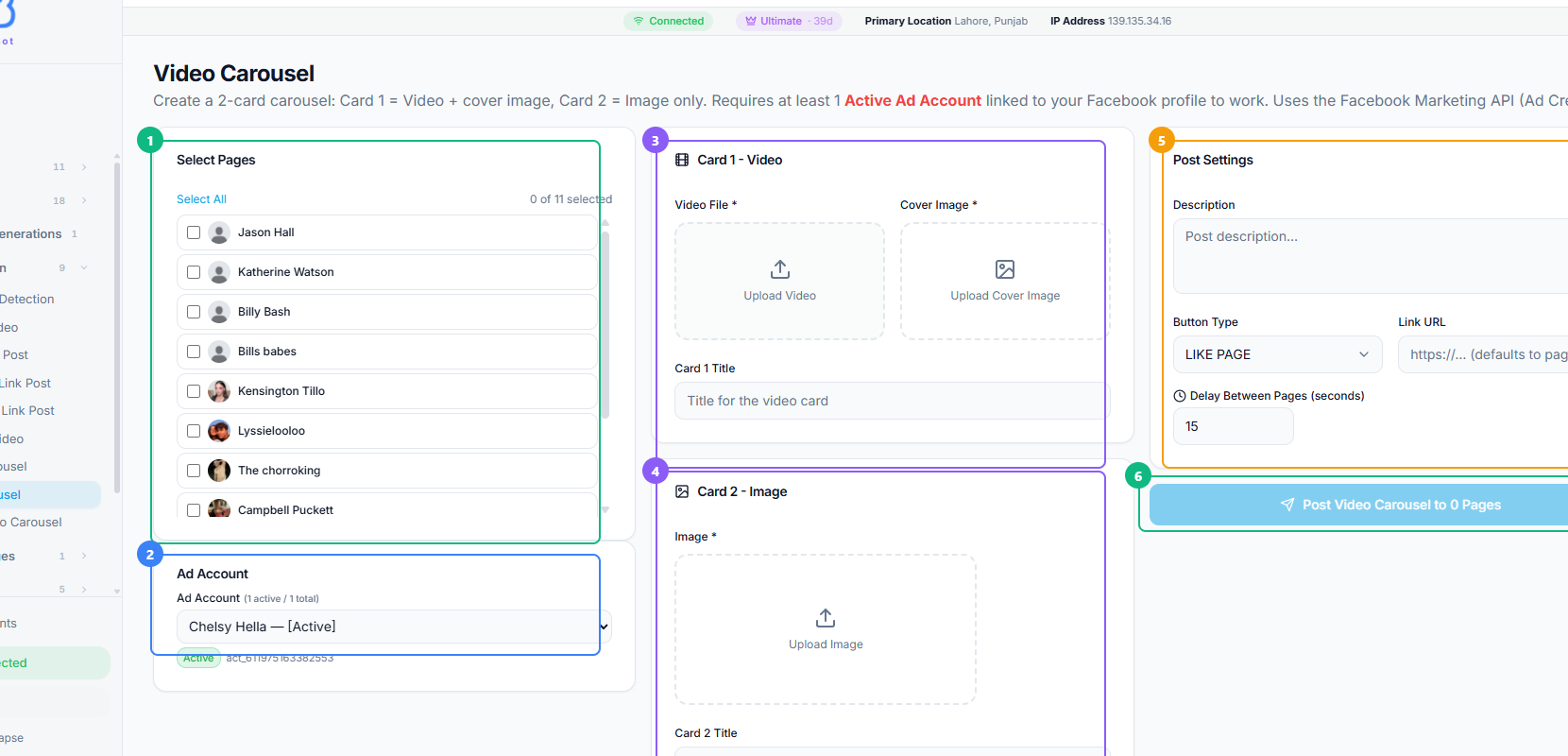
The Video Carousel tool uses a three-column layout. Select the pages to post to from the checkbox list (1), choose your active ad account (2), configure Card 1 with a video file, cover image, and title (3), set up Card 2 with a static image and title (4), fill in the post settings including description, CTA button type, link URL, and delay between pages (5), then publish the carousel to your selected pages (6).
How FaceBot's Video Carousel Tool Works#
Step 1: Select Your Page#
Open the Video Carousel tool in the FaceBot Content Creation suite and choose the Facebook page for publishing.
Step 2: Prepare Your Videos#
Video preparation matters more for carousels than for single video posts because users will compare cards side by side as they swipe. Consistency is essential.
Format recommendations:
- Aspect ratio: 1:1 (square) is the most reliable for carousel cards. Vertical (4:5 or 9:16) can work but may crop unpredictably across devices.
- Duration: 15-60 seconds per video. Shorter videos perform better in carousels because users are more likely to watch to completion before swiping. Anything over 60 seconds per card risks losing the viewer before they reach the next card.
- File format: MP4 with H.264 encoding is the safest choice. Facebook accepts other formats but re-encodes everything to H.264 anyway.
- Resolution: Minimum 720p. 1080p is ideal. 4K is unnecessary -- Facebook will compress it.
- Thumbnails: Facebook auto-generates thumbnails from video frames. If the auto-selected frame is not ideal, you can often improve it by ensuring your video's first few seconds contain a visually compelling shot.
If you are starting with static images and want to convert them to video content, the image-to-video converter can create video clips from still images with motion effects.
Step 3: Configure Each Card#
For every card in the carousel:
- Upload the video for this card
- Enter the headline -- keep it under 40 characters for full display
- Add a description (optional but recommended for context)
- Paste the destination URL -- this is where clicks on this card will land
- Choose a call-to-action -- "Watch More," "Shop Now," "Learn More," etc.
Step 4: Write Post Copy#
The text above the carousel sets the stage. For video carousels specifically:
- Mention that there are multiple videos to watch ("Swipe to see all 5 demos")
- Give a reason to engage with the first video
- Do not describe every card in the post copy -- let the videos speak for themselves
Step 5: Publish#
Review the complete carousel, checking that each video plays correctly and each link points to the right destination. Publish immediately or schedule for optimal posting time.
Practical Use Cases for Video Carousels#
Product Demonstrations#
Show different products in action across carousel cards. A kitchen appliance brand could demonstrate a blender, food processor, air fryer, and stand mixer -- each in its own card with a direct link to the product page. The viewer watches demos for items that interest them and clicks through to buy.
Customer Testimonials#
Compile short video testimonials into a carousel. Each card features a different customer sharing their experience. This format is more compelling than a single long testimonial video because viewers can swipe to hear from multiple people, and the variety builds social proof.
Before-and-After Transformations#
Fitness trainers, beauty brands, home renovation services, and similar businesses can use each card to show a different transformation. The swipe format creates a "reveal" moment that encourages continued engagement.
Course or Tutorial Preview#
Online course creators can use video carousels to preview different lessons or modules. Each card shows a snippet from a different section of the course, with a link to the enrollment page. This gives potential students a taste of the content before committing.
Multi-Location Business Promotion#
Businesses with multiple locations can feature each location in its own card -- a short video tour with a link to that location's specific page or booking system.
Video Carousel vs. Picture Carousel: When to Use Which#
Both formats share the same carousel structure. The choice comes down to content type and production capacity.
| Criteria | Picture Carousel | Video Carousel |
|---|---|---|
| Production effort | Lower -- static images are faster to create | Higher -- video requires shooting, editing, encoding |
| Engagement potential | High (swipe interaction) | Very high (swipe + video play signals) |
| Dwell time | Moderate | High (video keeps attention longer) |
| Best for | Product catalogs, step-by-step guides, portfolio | Demos, testimonials, tutorials, previews |
| File size | Smaller | Larger (plan upload time accordingly) |
| Algorithm favor | Good | Better (video + carousel double signal) |
If you have video assets available, video carousels will almost always outperform image carousels. If you only have static images but want motion content, consider converting images to video clips first and then using the video carousel format.
For image-based carousels, the complete carousel creation guide covers the Picture Carousel tool in detail.
Best Practices#
Lead with Your Strongest Video#
The first card determines whether users swipe. Put your most visually compelling, most emotionally engaging, or most surprising video on card one. Save your call-to-action or summary for the last card.
Keep Videos Short and Focused#
Each video should deliver one clear message. Do not try to cram a full product overview into a single carousel card. Think of each card as a 15-30 second pitch for one specific thing.
Add Captions or Text Overlays#
The majority of Facebook video is watched without sound. Every video in your carousel should be comprehensible with the audio muted. Use captions, text overlays, or visual demonstrations that do not require audio narration.
Maintain Visual Consistency#
All videos in the carousel should have a consistent look: same lighting style, same brand colors, same text overlay format. A carousel that looks like a random collection of clips feels unprofessional and discourages swiping.
Optimize for Completion Rate#
Facebook tracks how much of each video users watch. Higher completion rates signal quality content. Keep each card's video short enough that most viewers watch it entirely before swiping to the next card. If your videos average 50% completion, they are too long for the carousel format.
Limitations#
- Pages only. Video carousels publish to Facebook pages. Personal profiles and groups do not support this format natively.
- Upload speed. Multiple video files take longer to upload than images. Ensure a stable connection, especially for carousels with 5 or more videos.
- Card limit. Facebook supports 2 to 10 cards. The same 3-5 card sweet spot that applies to image carousels applies here -- most users will not swipe through all ten.
- No mixing. The Video Carousel tool creates carousels with video-only cards. You cannot mix images and videos in the same carousel through this tool.
- Processing time. Facebook processes and encodes uploaded videos, which can add a delay between submission and the post going live.
Frequently Asked Questions#
How long can each video be in a Video Carousel?#
Facebook allows videos up to 240 minutes per card, but for carousel posts, keep each video between 15 and 60 seconds. Shorter videos drive higher completion rates and encourage more swiping, which is the behavioral signal that makes carousels effective.
Can I use the same link on every card?#
Yes, but it defeats one of the key advantages of the carousel format. If all cards link to the same destination, you lose the ability to drive traffic to multiple pages and the per-card click tracking becomes less useful. Use unique links per card when possible.
Do Video Carousel posts autoplay in the feed?#
Yes. Facebook autoplays video in the feed (muted by default). The first card's video will autoplay as users scroll past it, which is another advantage over static carousels -- the motion catches attention without requiring any user interaction.
Can I add a Video Carousel to an existing post?#
No. Carousels must be created as a new post. You cannot convert an existing video post into a carousel or add carousel cards to a published post.
What is the maximum file size per video?#
Facebook supports video files up to 4GB per clip. For carousel cards, anything over 500MB per video is excessive and will slow down the upload and processing. Compress your videos to reasonable file sizes without sacrificing visible quality.
Conclusion#
Video carousels represent one of the most engagement-rich organic content formats available on Facebook. They combine the attention-holding power of video with the interactive structure of carousels, and each card can drive traffic to a different destination. FaceBot's Video Carousel tool makes this format accessible for organic page posts, giving marketers and businesses a way to publish what was previously an ads-only format.
If you have video content that can be segmented into distinct clips -- product demos, testimonials, tutorials, previews -- the video carousel is likely your highest-performing organic option.
Create a Video Carousel post now