What Is Video Card Post? Create Link Preview Posts with Video on Facebook
When you upload a video to a Facebook page, it plays in the feed as a standard video post. Viewers watch, maybe react or comment, and scroll on. The video itself has no headline card, no description overlay, no embedded call-to-action button, and no clickable link destination. If you want viewers to visit a URL after watching, your only option is to drop the link in the post caption text — where most people never click it.
A Video Card Post changes this. Instead of a plain video upload, the post displays as a video link card — a format that combines a video player with the visual structure of a link preview. The video plays inline, but below it sits a headline, description, and a clickable call-to-action button that sends viewers directly to any URL you choose.
This format exists in Facebook's post ecosystem, but Facebook's native page tools do not offer a straightforward way to create it for organic posts. FaceBot's Video Card Post tool generates this format directly, giving page managers a post type that combines the engagement power of video with the conversion structure of a link card.
How Video Card Posts Differ from Regular Video Uploads#
The distinction matters because these two formats serve fundamentally different purposes and produce different outcomes in the feed.
Standard Video Post#
When you upload a video normally to a Facebook page:
- The video displays at full width in the feed
- Autoplay begins as the user scrolls past
- The post caption appears above the video
- There is no headline or description overlay on the video card
- There is no embedded call-to-action button
- Any URL in the caption is plain text — no visual link preview
- Facebook optimizes distribution for watch time and video completion
Video Card Post#
When you create a video card post:
- The video displays within a card container — similar to how a shared link appears
- Below the video player, a headline and description appear as structured text
- A call-to-action button (Shop Now, Learn More, Sign Up, etc.) sits below the description
- Clicking the card area outside the play button takes the user to your destination URL
- The format combines video engagement signals with link click signals
- Facebook treats it as a distinct post type with its own distribution characteristics
The practical difference is conversion. A standard video post optimizes for views. A video card post optimizes for views AND clicks. The structured headline, description, and CTA button give viewers a clear next action without relying on caption text that many users skip.
Why Video Card Posts Drive More Clicks#
Three structural advantages explain the performance difference:
Visual Hierarchy#
The card format creates a visual frame around the video that draws attention to the CTA. When a user finishes watching (or pauses), the headline and button are immediately visible below the player — not buried in a text caption that requires expanding. The eye naturally moves from video to headline to button.
Clickable Surface Area#
In a standard video post, the only clickable link is a URL string in the caption. In a video card post, the entire card area below the video is clickable. The headline, description, and CTA button all route to your destination. This dramatically increases the effective click target, especially on mobile where small text links are hard to tap.
Intent Signaling#
The card format signals commercial or informational intent in a way that a raw video upload does not. Users recognize the link preview format from every article share and ad they see in their feed. The visual pattern communicates "this goes somewhere" — priming viewers to click rather than just watch.
Algorithm Consideration#
Facebook's feed algorithm weighs different engagement types differently per post format. Link card posts receive distribution credit for outbound clicks. Standard video posts receive distribution credit for watch time. Video card posts can benefit from both signals — video watch time AND link clicks — which can produce broader distribution than either format alone when both metrics perform well.
How to Create a Video Card Post in FaceBot#
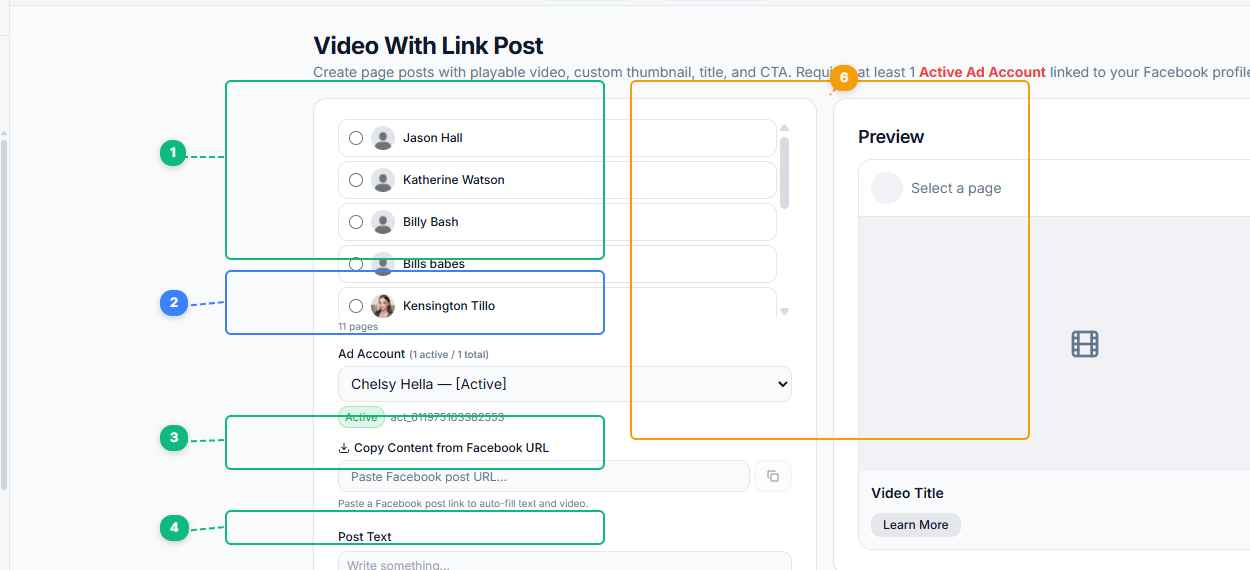
The Video With Link Post tool provides a form-based layout with live preview. Select your target page from the radio list (1), choose your linked Ad Account (2), optionally import content from an existing Facebook post URL (3), write your post text (4), upload your video and custom thumbnail (5), and preview how the final card will look with video title and CTA button in the preview panel (6).
Step 1: Select Your Page#
Open the Video Card Post tool and select the Facebook page you want to post to. If you manage multiple pages, you can create video card posts for any page connected to your FaceBot account.
Step 2: Upload Your Video#
Upload the video file you want to use. Recommended specifications:
- Format: MP4 with H.264 encoding
- Duration: 15 seconds to 3 minutes works best for card posts. Shorter videos maintain attention through the CTA. Very long videos dilute the conversion intent.
- Aspect ratio: 1:1 (square) or 4:5 (vertical) for maximum mobile feed real estate. 16:9 (landscape) works but takes up less vertical space in the feed.
- Resolution: Minimum 720p. 1080p recommended.
- File size: Under 100MB for fast upload and processing.
Step 3: Add Your Link#
Enter the destination URL. This is where viewers land when they click the card or the CTA button. Use a clean, trackable URL — UTM parameters are recommended so you can attribute traffic to this specific post.
Step 4: Write Your Headline#
The headline appears immediately below the video player. Keep it:
- Under 40 characters for full display without truncation on mobile
- Action-oriented: Tell the viewer what they get by clicking
- Specific: "50% Off Running Shoes Today" beats "Check Out Our Sale"
Step 5: Write Your Description#
The description sits below the headline. It supports the headline with additional context:
- 1-2 short sentences maximum
- Reinforce the value proposition or add urgency
- Do not repeat the headline — extend it
Step 6: Choose a Call-to-Action#
Select from available CTA buttons: Shop Now, Learn More, Sign Up, Book Now, Watch More, Download, Get Offer, and others. Choose the CTA that most accurately describes what happens when the viewer clicks. Mismatched CTAs (using "Shop Now" for a blog post) reduce trust and click-through.
Step 7: Write Post Caption#
Add the text that appears above the video card in the feed. This is your hook — the text that stops the scroll. Make it complement the video and card, not repeat them.
Step 8: Publish#
Review your post and publish. The video card post goes live on your page with the full card structure — video player, headline, description, CTA button, and clickable link destination.
Use Cases for Video Card Posts#
E-Commerce Product Launches#
Film a 30-second product demo or unboxing video. Set the link to the product page. The headline announces the product, the description mentions the price or offer, and the Shop Now button sends viewers directly to purchase. The video builds desire; the card converts it.
Lead Generation#
Create a short explainer video about a free resource — a guide, template, calculator, or trial. The card links to the landing page with the sign-up form. The video explains the value; the card captures the lead.
Event Promotion#
Use video highlights from a previous event or a promotional teaser for an upcoming one. Link to the registration page. The Book Now or Sign Up CTA drives registrations directly from the feed.
Blog and Content Distribution#
Turn a key insight from a blog post into a 15-30 second video clip. The card links to the full article. Readers who click have already shown interest via the video — they arrive at the article with higher intent than cold traffic from a text-only link share.
Service Businesses#
A short video showing results, process, or client testimonials. The card links to a booking or consultation page. The Learn More or Book Now CTA converts video viewers into leads.
App Install Campaigns#
A screen recording or demo video of the app in action. The card links to the app store listing. The Download CTA drives installs from organic page posts without requiring paid advertising.
Best Practices#
Front-load the video. The first 3 seconds determine whether someone watches or scrolls past. Start with movement, color, or a bold visual — not a logo animation or text intro. Save branding for the end.
Match video content to the CTA. If the CTA says Shop Now, the video should show the product. If the CTA says Learn More, the video should tease the information. Mismatches between what the viewer watches and what the button promises kill click-through rates.
Use square or vertical video. On mobile — where the majority of Facebook users are — square (1:1) and vertical (4:5) videos occupy more screen space than landscape (16:9). More screen space means more attention, longer watch times, and more card visibility.
Keep videos under 60 seconds for conversion goals. Long-form video works for brand storytelling. For video card posts where the goal is a click, shorter videos perform better. The video's job is to build enough interest to drive the click — not to deliver the complete message.
Test different headlines. The headline is the single highest-impact element for click-through rate. Test direct benefit ("Free Shipping This Week") against curiosity ("This Changed How We Ship") against urgency ("Ends Tonight at Midnight"). Small headline changes can produce large click-rate differences.
Include captions or text overlays. The majority of Facebook video views happen with sound off. If your video relies on spoken audio, add captions. Better yet, use text overlays that communicate the key message visually so the video works with or without sound.
For more Facebook page content formats, see the complete guide to Facebook page automation. If you are creating image-based link card posts instead of video, the Picture Link Post tool follows the same card structure with static images.
🚀 Ready to try Video Card Post?
Create video posts with clickable link cards
Open it Now →Video Card Post vs. Other Post Types#
| Feature | Video Card Post | Standard Video | Link Share | Photo Post |
|---|---|---|---|---|
| Video playback | Yes (autoplay) | Yes (autoplay) | No (static thumbnail) | No |
| Headline overlay | Yes | No | Yes | No |
| CTA button | Yes | No | Sometimes | No |
| Clickable link | Full card | Caption only | Full card | Caption only |
| Engagement signals | Video + clicks | Video only | Clicks only | Reactions only |
| Best for | Conversion + engagement | Watch time | Traffic | Awareness |
The video card post uniquely combines video engagement with link conversion structure. No other organic post type delivers both.
How to Get Started#
The Video Card Post tool is available in FaceBot's Page Management suite. If you are currently posting standard videos and want to drive more traffic to your website, landing pages, or product listings, switching to video card posts adds a structured conversion layer to every video you publish.
For workflows involving multiple post types across pages, combine video card posts with the Bulk Page Composer for text and image posts, Album Card Posts for multi-image carousels, and Share to Groups to amplify your best-performing video card posts across Facebook groups.
Conclusion#
Video card posts combine the engagement power of video with a structured click target that standard video posts lack. For page operators who rely on driving traffic to external destinations — product listings, landing pages, articles — this format adds a conversion layer to every video without requiring any additional production work. The difference between a video with a link buried in the caption and a video with a prominent clickable card underneath is significant and measurable.
FaceBot's Video Card Post tool makes this format accessible to any page operator, regardless of how many pages they manage. Paired with FaceBot's bulk posting and content creation tools, you can produce video card posts at scale across your entire page network with consistent formatting and branding.
→ Try FaceBot's social media tools free
Frequently Asked Questions#
Q: What is the difference between a video card post and a video ad?#
A video card post is an organic page post — it appears on your page timeline and in your followers' feeds without any ad spend. A video ad is created through Facebook Ads Manager and requires a paid budget. The visual format can look similar, but video card posts are free to create and distribute organically. They do not have the targeting, optimization, or reporting capabilities of paid video ads.
Q: Can I use video card posts on personal profiles?#
No. Video card posts with structured headlines, descriptions, and CTA buttons are a page-level feature. Personal profiles support standard video uploads but not the link card overlay format. FaceBot's Video Card Post tool creates posts for Facebook pages.
Q: What video length works best for video card posts?#
For conversion-focused posts (driving clicks to a URL), 15 to 60 seconds performs best. The video needs to be long enough to communicate value but short enough that viewers reach the CTA with interest still high. For brand awareness goals where clicks are secondary, longer videos up to 3 minutes can work, but completion rates drop significantly past 60 seconds.
Q: Does the video autoplay in the feed?#
Yes. Like all Facebook video posts, video card posts autoplay as users scroll past them in the feed (with sound off by default). The autoplay behavior is identical to standard video posts — the card structure (headline, description, CTA) appears below the video regardless of whether the user actively plays or passively watches the autoplay.
Q: Can I edit the headline and link after publishing?#
Facebook allows limited post editing after publication. You can typically edit the caption text, but the link URL, headline, and CTA button are often locked after the post goes live. Create your video card posts with final copy before publishing. If you need to change the destination URL, create a new post rather than attempting to edit the existing one.