
What Is Pending Post Manager? Bulk Review and Approve Facebook Group Posts
If you admin a Facebook group with post approval turned on, you know the pending post queue. Every post submitted by a member sits in a queue until an admin or moderator reviews and approves it. For groups with a few posts per day, this is manageable. For groups with dozens or hundreds of daily submissions, the pending queue becomes a bottleneck that slows content flow, frustrates members, and creates a moderation backlog that grows faster than you can clear it.
The native Facebook interface for managing pending posts is painfully linear. You see one post at a time, click approve or decline, wait for the next one to load, repeat. There is no bulk selection. There is no filtering. There is no way to prioritize. And if you admin multiple groups, each group has its own separate pending queue with no cross-group view.
Pending Post Manager is a FaceBot tool built for group admins who need to process pending posts efficiently. It pulls pending posts from your groups into a single interface, lets you filter and sort them, and supports bulk approval or rejection.
Why Post Approval Queues Exist#
Before examining the tool, it is worth understanding why groups use post approval in the first place and why the queue management problem is so common.
The Spam Prevention Tradeoff#
Post approval is the most effective defense against group spam. When every post must be approved by an admin, spam never reaches the group feed. Members never see the crypto scams, the affiliate link dumps, or the irrelevant self-promotion that plagues unapproved groups. The Spam Post Remover tool handles reactive spam cleanup, but post approval is the proactive defense.
The tradeoff is clear: quality control comes at the cost of admin labor. Every legitimate post is delayed by however long it takes an admin to review and approve it. In an active group, this delay can frustrate members who want their content visible immediately.
The Scale Problem#
The math works against you as groups grow:
- A 1,000-member group might get 5-10 pending posts per day. A single admin can handle this in ten minutes.
- A 10,000-member group might get 30-50 pending posts per day. This requires consistent daily moderation.
- A 50,000-member group might get 100-200+ pending posts per day. This requires multiple moderators or a significant time commitment.
Many admins enable post approval when their group is small, then find themselves overwhelmed as the group grows. Turning off approval is not a real option because the spam problem grows proportionally with group size.
How Pending Post Manager Works#
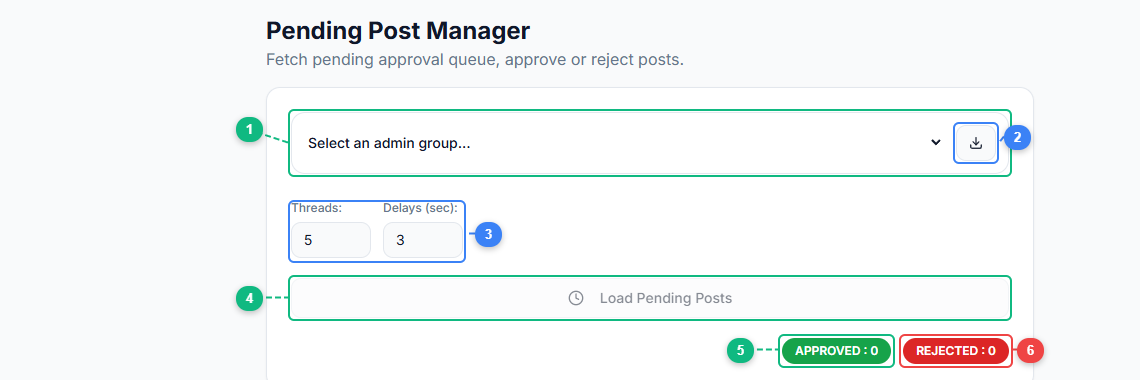
The Pending Post Manager interface keeps things simple. Select an admin group from the dropdown (1), refresh your group list (2), configure threading speed and delay between actions (3), load the pending post queue (4), and track your progress with the approved (5) and rejected (6) counters. Once posts are loaded, you can approve or reject them individually or in bulk.
Aggregated Queue View#
The tool pulls pending posts from all your groups into a single feed. Instead of switching between groups and loading each queue separately, you see everything in one place. Each pending post shows:
- The group it was submitted to.
- The member who submitted it.
- The post content (text, images, links, videos).
- When it was submitted.
- The member's group tenure (how long they have been a member).
- The member's post history in the group (first-time poster, regular contributor, etc.).
This context is critical for fast decisions. A post from a member who has been active in the group for two years deserves different scrutiny than the same post from someone who joined yesterday.
Filtering and Sorting#
You can filter the pending queue by:
- Group. Show only pending posts from a specific group.
- Member tenure. Filter by how long the poster has been a group member. New members (under 7 days) are more likely to post spam; long-standing members are more likely to post legitimate content.
- Content type. Show only posts with links, only image posts, only text posts, etc. Link-heavy posts are the highest spam risk category.
- Submission time. Sort by oldest first (to clear the backlog) or newest first (to prioritize fresh content).
- Keyword. Search pending posts for specific terms -- useful if you are looking for posts about a particular topic to approve first.
Bulk Actions#
The core time-saving feature: select multiple posts and approve or reject them in a single operation.
Bulk approve is appropriate when you have filtered to a category you trust. For example, after filtering to show only posts from members with 30+ days of tenure and no links, you might approve the entire filtered set at once. These are established members posting text content -- the spam probability is very low.
Bulk reject is appropriate for obvious spam patterns. After filtering to show posts from members who joined in the last 24 hours that contain external links, you might reject the batch. Not every post in that category is spam, but the hit rate is high enough that bulk rejection followed by individual review of any false positives is faster than reviewing each one.
Individual Review#
For posts that do not fit neatly into bulk categories, the tool supports individual review with one-click approve or reject. The interface is faster than Facebook's native pending post page because it loads the next post immediately without a full page refresh.
The Moderation Workflow#
Effective pending post management is not just about speed -- it is about building a repeatable workflow that maintains quality without burning out your moderation team.
The Triage Approach#
Process your pending queue in passes, from highest confidence to lowest:
Pass 1: Auto-approve trusted members. Filter for members with 60+ days of tenure and a clean posting history. Approve the batch. These are your core community members, and their posts are almost always legitimate.
Pass 2: Auto-reject obvious spam. Filter for new members (under 7 days) with posts containing external links or known spam keywords. Reject the batch. Spot-check a few to ensure you are not catching false positives.
Pass 3: Review the gray zone. The remaining posts -- from newer members, posts with links from established members, content that could be borderline self-promotion -- get individual review. This is the category that requires human judgment.
This three-pass approach means you spend your limited judgment on posts that actually need it, rather than spending equal time on posts that are obviously good or obviously bad.
Setting Up Moderation Shifts#
For groups with high submission volume, a single admin cannot sustainably process the entire queue every day. Set up moderation shifts where different admins or moderators handle the queue at different times. Pending Post Manager's cross-group view makes it easy for any authorized team member to pick up where the last person left off.
Response Time Targets#
Members notice how long their posts sit in the pending queue. Set targets:
- Under 2 hours during business hours for active groups. This keeps content flowing and members engaged.
- Under 12 hours for after-hours submissions.
- Never more than 24 hours. Posts older than a day in the pending queue are effectively dead content -- the moment has passed.
Pending Post Manager's timestamp sorting helps you prioritize the oldest pending posts first, preventing any submission from aging out.
Practical Use Cases#
Admins of High-Volume Groups#
If your group receives more than 30 pending posts per day, the native Facebook interface is inadequate. The per-post review loop (load, read, decide, click, wait, repeat) consumes disproportionate time relative to the actual decision-making involved. FaceBot's Pending Post Manager cuts the mechanical overhead so you can focus on the editorial judgment.
Multi-Group Administrators#
If you admin three groups with post approval enabled, that is three separate queues to check daily. Five groups means five queues. The aggregated view eliminates the context-switching cost of moving between groups and ensures you do not neglect one group's queue while focused on another.
Moderation Teams#
When multiple people share moderation duties, the aggregated view provides a shared workspace. Anyone on the team can see what is pending, what has been approved by a colleague, and what still needs attention. This prevents duplicate reviews and ensures nothing falls through the cracks.
Groups with Strict Content Policies#
Groups focused on specific topics -- professional development, technical discussions, academic communities -- often have strict content policies that require careful review of every post. Pending Post Manager's member context (tenure, post history) and content filtering help moderators make faster policy-aligned decisions without sacrificing thoroughness.
🚀 Ready to try Pending Post Manager?
Bulk review and approve pending group posts
Open it Now →Best Practices#
Do Not Turn Off Post Approval to Avoid the Queue#
When the pending queue becomes overwhelming, the temptation is to disable post approval entirely. This is almost always a mistake for groups above a few thousand members. The spam volume that hits an unapproved group is dramatic, and cleaning up spam after it is posted (reactive moderation) is harder than filtering it before it appears (proactive moderation). Use better tooling, not less moderation. The complete guide to managing groups at scale covers this tradeoff in detail.
Use Approval Shortcuts for Regular Contributors#
Many groups have a core of 50-100 members who contribute regularly and have never posted spam. Identifying these members and fast-tracking their posts -- either through the trusted member filter in Pending Post Manager or by adding them to a Facebook-native approved members list -- reduces the queue volume significantly.
Write Clear Rejection Reasons#
When rejecting a post, consider sending the member a brief message explaining why. "Your post was declined because it contained an affiliate link, which is not allowed in this group" is better than a silent rejection. Members who understand the rules are more likely to submit compliant posts in the future. Members who are silently rejected often leave the group or repost the same content.
Monitor Rejection Rates#
If you are rejecting more than 30-40% of pending posts, something upstream is broken. Either your group's rules are not clearly communicated, your membership screening is too permissive, or your target audience does not match the group's purpose. A high rejection rate is a symptom -- the fix is upstream, not in the pending queue.
Combine with Auto Poster Awareness#
If you use the Group Auto Poster to distribute content across groups, remember that your automated posts will also land in pending queues for groups with approval enabled. Coordinate your posting schedule with your moderation schedule so that auto-posted content is approved promptly.
Limitations#
- You must be an admin or moderator. Pending Post Manager only shows pending posts for groups where you have the authority to approve or reject content.
- Facebook rate limits apply. Bulk approvals and rejections are paced to avoid triggering rate limits. Processing very large backlogs (500+ pending posts) may take time.
- No AI-based content scoring. The tool provides filtering and context but does not automatically score or classify posts. The approve/reject decision is yours.
- Screening question answers are not shown. For private groups with screening questions, the pending post queue does not include how the member answered their entry questions. That information is in the membership approval queue, which is a separate process.
- Multimedia preview limitations. While text and image posts render in the tool's interface, some complex media formats (360 photos, live video replays) may require viewing on Facebook directly.
Frequently Asked Questions#
Can Pending Post Manager automatically approve posts that meet certain criteria?#
The tool supports bulk approval based on filters (member tenure, content type, etc.), but the approval action requires your confirmation. It does not auto-approve in the background without your involvement. This is by design -- fully automated approval defeats the purpose of having a pending queue.
Does the tool work with Facebook group rules that auto-decline posts?#
Facebook allows admins to set up keyword-based auto-decline rules within the group settings. These rules execute before posts reach the pending queue. Pending Post Manager works with whatever posts make it past Facebook's native filters and into the actual pending queue.
Can I approve posts from my phone?#
Pending Post Manager is a browser-based tool that requires the FaceBot extension. It works on desktop browsers. For mobile post approval, you would need to use Facebook's native Group Admin app or the Groups tab in the Facebook mobile app.
What happens to rejected posts? Can members resubmit?#
When a post is rejected, it is removed from the pending queue and the member is typically notified that their post was not approved. The member can submit a new post, but the rejected post itself is gone. Facebook does not provide a "revise and resubmit" workflow.
How far back does the pending queue go?#
The pending queue shows all unapproved posts regardless of age. Some groups accumulate pending posts that are weeks or months old if moderation has lapsed. Pending Post Manager's date sorting helps you identify and clear ancient backlogs.
Conclusion#
Pending post management is the least glamorous and most important aspect of running a quality Facebook group. Every minute a legitimate post sits unapproved is a minute of lost engagement. Every spam post that slips through is a dent in community trust.
Pending Post Manager does not make the editorial decisions for you. What it does is eliminate the mechanical friction that makes those decisions take three times longer than they should. The aggregated cross-group view, the filtering, and the bulk actions turn a daily chore into a daily process -- structured, efficient, and sustainable even at scale.
FaceBot built this tool for admins who take moderation seriously but do not have unlimited time to devote to it. If that describes you, the tool will pay for itself in time savings within the first week.
Try Pending Post Manager to streamline your moderation workflow.