
What Is Story Post? Publish Stories to Facebook Pages With Images, Videos, and CTAs
Facebook Stories occupy the most prominent real estate on the platform. They sit at the very top of the feed — above all posts, above all ads, above every other piece of content. When someone opens Facebook, Stories are the first thing they see. For pages, Stories represent an opportunity to capture attention in a placement that most pages underuse because creating and publishing Stories is either manual (through the mobile app) or limited (through Meta Business Suite).
The Story Post tool in FaceBot gives page administrators a dedicated workflow for publishing Stories to Facebook Pages. Upload images or videos, add links and call-to-action buttons, and publish Stories to your pages directly from the dashboard. No mobile phone required, no Business Suite limitations.
What Does the Story Post Tool Do?#
The tool creates and publishes Facebook Stories on pages you administer. Here is what it handles:
Image Stories. Upload a static image and publish it as a Facebook Page Story. The image displays full-screen on mobile devices and in the Stories strip on desktop.
Video Stories. Upload a video clip and publish it as a Story. Video Stories auto-play and tend to hold attention longer than image Stories, making them valuable for engagement and message delivery.
Link attachment. Attach a destination URL to your Story. Viewers can swipe up (or tap the link button) to visit the URL. This transforms Stories from a passive viewing experience into a traffic-driving tool.
Call-to-action buttons. Add CTA buttons to your Stories — "Shop Now," "Learn More," "Sign Up," "Get Directions," and other standard Facebook CTA options. These buttons appear as overlay elements that viewers can tap.
Page selection. Choose which page to publish the Story on. If you manage multiple pages, select the target page from within the FaceBot dashboard.
Desktop publishing. Create and publish Stories from your computer, not just your phone. This is a significant workflow advantage for page managers who work from desktop environments.
Why Facebook Stories Matter for Pages#
Prime Screen Position#
Stories appear at the top of both the mobile app feed and the desktop News Feed. This placement has zero competition from regular posts — your Story sits above the algorithmic feed where every other post is fighting for position. For the 24 hours your Story is active, you have a guaranteed visibility slot that no amount of organic or paid post optimization can match.
High Engagement Rates#
Facebook Stories have higher engagement rates per impression than feed posts. The full-screen, immersive format holds attention in a way that a scrollable feed post cannot. Viewers are in a lean-forward consumption mode when watching Stories — they actively tap through rather than passively scrolling.
Growing Audience#
Facebook reports that over 500 million users interact with Stories daily across its platforms. The Stories audience has grown consistently year over year, and the format continues to gain share of total content consumption time. Pages that are not publishing Stories are missing the fastest-growing content surface on Facebook.
24-Hour Urgency#
The ephemeral nature of Stories — they disappear after 24 hours — creates natural urgency. Viewers know the content is temporary, which increases the likelihood of immediate engagement rather than the "I'll look at that later" response that often kills feed post engagement.
Algorithm Independence#
Story placement is not subject to the same algorithmic filtering as feed posts. Your followers are more likely to see your Story than your feed post because Stories are presented as a browseable strip rather than a ranked feed. This makes Stories one of the most reliable ways to reach your existing followers.
Practical Use Cases#
Daily Behind-the-Scenes Content#
Stories are perfect for informal, day-in-the-life content that does not warrant a permanent feed post. The types of content that work best in this format include:
- Behind-the-scenes footage — showing how products are made or services are delivered
- Team moments — employee spotlights, celebrations, and workplace culture
- Office or workspace tours — giving followers a peek at where the work happens
- Production processes — raw footage of content creation, packaging, or event setup
- Quick updates — announcements, reminders, and time-sensitive information
This content humanizes your brand and builds audience connection without cluttering your page's permanent feed.
Flash Sales and Limited Offers#
The 24-hour lifespan of Stories aligns perfectly with time-limited promotions. "24-hour flash sale" Stories create genuine urgency because the promotional content literally expires alongside the offer.
Product Showcases#
Use Stories to showcase products in a full-screen, immersive format. A single product photo in the feed competes with dozens of other posts. The same photo as a Story gets full-screen attention with zero visual competition.
Traffic Driving With Swipe-Up Links#
Story link attachments turn passive viewers into website visitors. Unlike feed posts where links are often suppressed by the algorithm, Story links are presented as a native interactive element that viewers are conditioned to tap.
Event Countdowns and Real-Time Updates#
Stories are ideal for event coverage: countdown posts leading up to an event, real-time photos and videos during the event, and follow-up recap content after the event. The temporal nature of Stories matches the temporal nature of events.
Content Teasers#
Tease upcoming content — a new blog post, a product launch, a video premiere — in your Stories with a link to the full content. Stories act as a notification channel that reaches followers more reliably than feed posts.
How to Use the Story Post Tool#
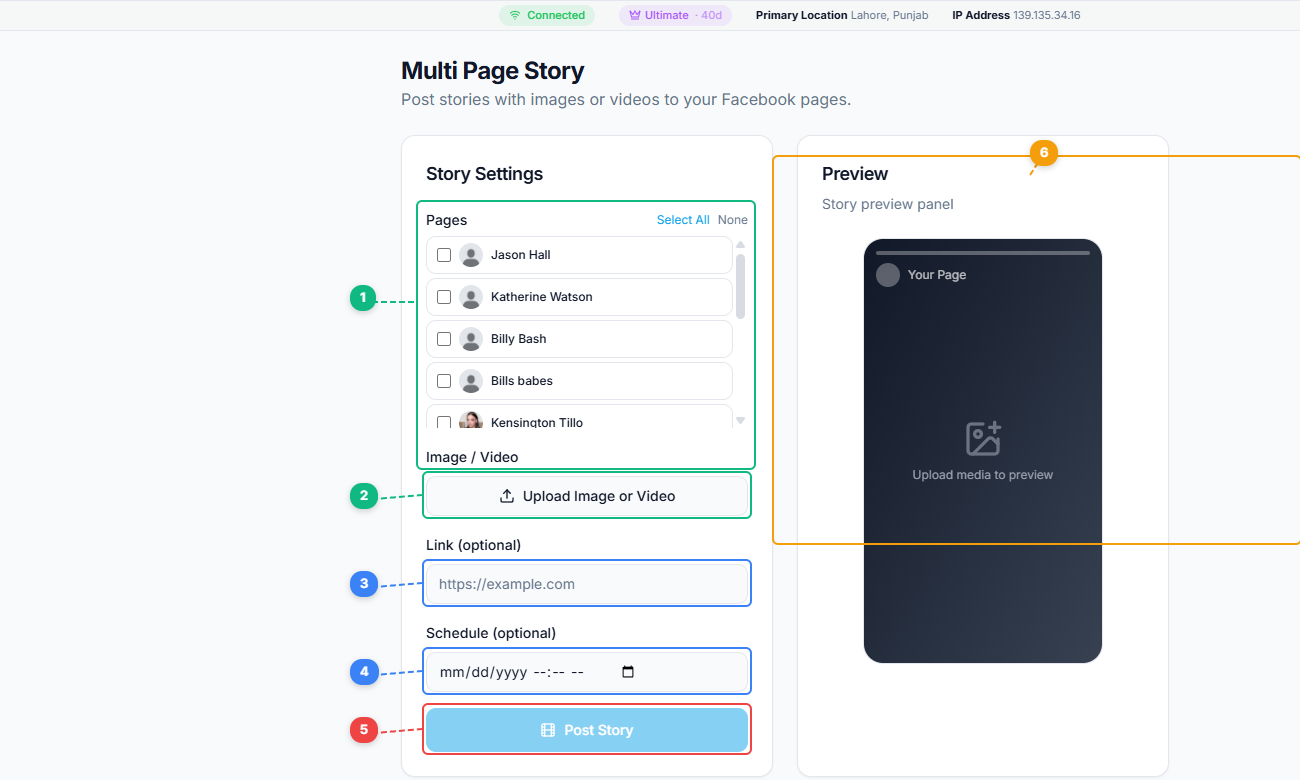
The Story Post tool provides a clean two-panel layout. Select target pages from your page list with Select All or None toggles (1), upload your image or video content (2), optionally add a destination link (3), set a scheduled publish time (4), click Post Story to publish (5), and preview how your story will appear on mobile in the live preview panel (6).
- Open the FaceBot dashboard and navigate to the Story Post tool.
- Select the Facebook Page where you want to publish the Story.
- Upload your image or video content.
- Optionally add a link URL and/or a call-to-action button.
- Preview the Story to confirm the visual layout and link placement.
- Publish the Story.
- Monitor Story performance over its 24-hour lifespan.
For a deeper guide on multi-page Story strategies, see the complete guide on how to post stories to multiple Facebook pages.
Tips for High-Performing Page Stories#
Optimize for vertical format. Stories display at 9:16 aspect ratio (1080x1920 pixels). Content created for other formats — landscape videos, square images — will appear with black bars or awkward cropping. Create or crop your content for vertical display before uploading.
Put the hook in the first second. Story viewers tap through quickly. If the first frame does not capture attention, they will skip to the next Story. Lead with your most compelling visual or your most important message.
Keep text minimal and large. Stories are viewed on mobile screens. Large, bold text that can be read at a glance outperforms paragraphs of small text. If your message takes more than 5 seconds to read, it is too long for a Story.
Use the link feature strategically. Not every Story needs a link. Use links when you have a specific traffic objective — a product page, a sign-up form, an article. Stories without links can focus on engagement and brand building.
Post Stories consistently. One Story per week has minimal impact. Daily or near-daily Stories keep your page present in the Stories strip, which reinforces brand awareness through repeated top-of-feed visibility.
Repurpose existing content. Your best-performing feed content can be adapted for Stories. A popular image post becomes a Story with a link to the full post. A video post excerpt becomes a Story teaser. The Image to Video Converter can help transform static images into video Stories with motion and transitions.
Limitations#
Stories have a 24-hour lifespan. After 24 hours, the Story disappears from your page's Story strip and is only accessible through your page's Story archive. This is a Facebook platform limitation, not a tool limitation.
Video Stories have length limits imposed by Facebook (currently up to 20 seconds per Story segment for pages). Longer videos need to be split into multiple Story segments.
Story analytics are available through Facebook's native insights and show metrics like reach, forward taps, back taps, exits, and link clicks. The Story Post tool handles publishing; analytics are accessed through Facebook's standard reporting.
Not all Facebook users actively engage with Stories. Your audience's Story consumption habits may vary. Some page audiences respond better to Stories than others — test consistently and track performance to understand your specific audience's behavior.
Frequently Asked Questions#
Can I post Stories to multiple pages at once?#
The Story Post tool publishes to one page per Story. For multi-page Story publishing, you can repeat the process for each page or refer to the multi-page Story posting guide for workflow strategies.
Do Page Stories show up the same way as personal Stories?#
Yes. Page Stories appear in the same Stories strip at the top of the feed, alongside personal Stories and Stories from other pages. Viewers can see your page's profile picture in the strip and tap it to view the Story.
Can I schedule Stories for later publication?#
The tool supports publishing Stories when you initiate the action. For scheduling, coordinate your Story publishing with your overall content calendar and publish at the optimal times for your audience.
How long do Stories stay visible?#
Facebook Stories are visible for 24 hours after publication. After that, they move to your page's Story archive where they are accessible to page administrators but not to the general public.
Can I add music or effects to Stories through this tool?#
The Story Post tool focuses on publishing images and videos with links and CTAs. For music, effects, stickers, and other creative elements, apply them to your media before uploading using your preferred editing tools. The Story is published as-is with whatever creative elements are baked into the uploaded file.
Conclusion#
The Story Post tool gives page administrators a dedicated, desktop-friendly workflow for publishing Facebook Stories with images, videos, links, and call-to-action buttons. Stories occupy Facebook's most valuable real estate — the top of every user's feed — and FaceBot makes it practical to publish to this placement consistently.
For pages that are not yet using Stories, the opportunity is significant. For pages that are already posting Stories manually through mobile, FaceBot streamlines the process into a workflow that integrates with your broader page management strategy.