
What Is IP Finder? Check Your IP Address, Location, and Connection Details
Every device connected to the internet has an IP address. This address determines how websites identify your location, which regional content you see, and how platforms like Facebook associate activity with a geographic origin. For anyone managing multiple social media accounts, running advertising campaigns across regions, or using proxies and VPNs as part of their workflow, knowing your current IP address and what it reveals about you is not optional -- it is operational hygiene.
FaceBot's IP Finder is a utility tool that displays your current IP address along with associated metadata: geolocation (country, city, region), ISP (Internet Service Provider), connection type, and other technical details. It is built into the FaceBot dashboard, so you can verify your connection without leaving the tool environment or relying on third-party websites that may track your visit.
What IP Finder Shows You#
When you open the tool, it immediately reads your current connection and displays:
IP Address#
Your public IPv4 (and/or IPv6) address as seen by external servers. This is the address that websites, APIs, and social media platforms see when you make requests. If you are using a VPN or proxy, this should show the VPN/proxy IP, not your real one.
Geolocation#
The physical location associated with your IP address:
- Country -- which country the IP is registered to
- Region/State -- the sub-national region
- City -- the approximate city (IP geolocation is accurate to the city level for most IPs, though precision varies)
- Coordinates -- latitude and longitude (approximate)
- Timezone -- the timezone associated with the IP's location
ISP and Network#
- ISP -- the Internet Service Provider or hosting company that owns the IP range
- Organization -- the organization associated with the IP (may differ from ISP for corporate or datacenter IPs)
- ASN -- the Autonomous System Number, which identifies the network operator
Connection Type#
Whether the IP is identified as residential, datacenter, mobile, or business. This matters because some platforms treat datacenter IPs differently from residential ones, and certain services may block or challenge traffic from known datacenter ranges.
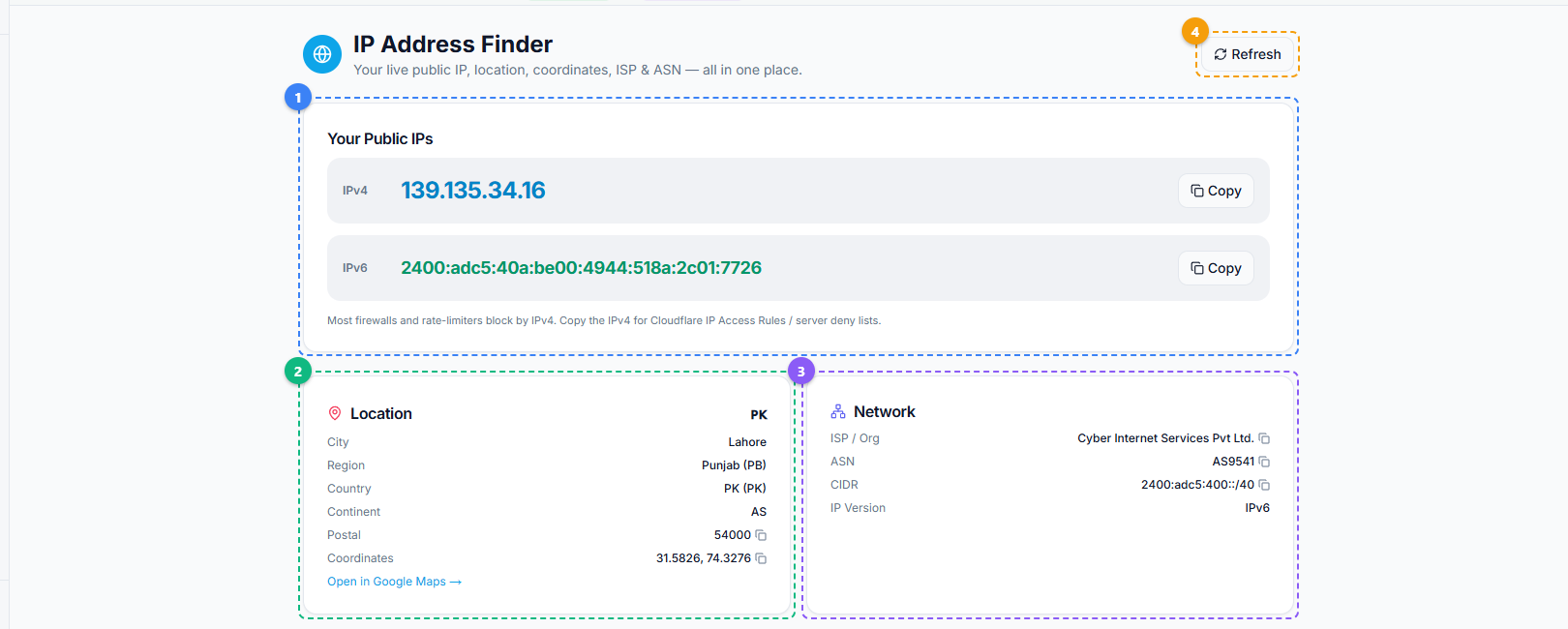
The IP Address Finder displays your connection details in organized cards. Your public IPv4 and IPv6 addresses appear at the top with one-click copy buttons (1), the Location card shows city, region, country, coordinates, and a Google Maps link (2), the Network card displays your ISP, ASN, CIDR range, and IP version (3), and the Refresh button lets you re-check after switching proxies or VPN connections (4).
🚀 IP Finder
Check your IP, ISP, and connection details
Try it Free →Why IP Verification Matters for Social Media Management#
Multi-Account Management#
Managing multiple Facebook accounts, pages, or ad accounts from a single device is common for agencies, social media managers, and businesses with multiple brands. Facebook tracks IP addresses as one of many signals for identifying linked accounts. If you are using separate proxies or VPN connections for different accounts, verifying that each session is actually using the intended IP prevents accidental cross-contamination.
A single slip -- one session that connects through your real IP instead of the assigned proxy -- can link accounts that are supposed to be independent. IP Finder lets you verify before you start working on each account.
Proxy Verification#
Proxy services occasionally fail, rotate to unexpected IPs, or drop connections and fall back to your real IP. If you are paying for a proxy in a specific country and the provider sends you an IP from a different country, your account activity appears inconsistent. IP Finder confirms that your proxy is working correctly, delivering the expected IP, and reporting the expected location.
VPN Confirmation#
VPN connections can drop silently. Many VPN clients have a "kill switch" that is supposed to block traffic if the VPN disconnects, but these do not always work reliably. A quick check with IP Finder before starting a session confirms that the VPN is active and routing your traffic through the expected server.
Ad Campaign Geo-Targeting#
When running Facebook Ads or other paid campaigns that target specific regions, it can be useful to verify what the platform sees as your location. If you are managing campaigns targeting Pakistan from a device connected through a US proxy, and the ad platform's behavior seems inconsistent with your targeting, an IP check can reveal whether your own connection might be influencing what you see in the ad manager interface.
Troubleshooting Access Issues#
Some FaceBot features interact with external services that may be region-restricted or IP-sensitive. If a tool is not working as expected and you suspect a geographic or network-level issue, IP Finder provides the diagnostic information you need. Knowing your exact IP, ISP, and location helps narrow down whether the problem is on your end (wrong proxy, blocked ISP) or the external service's end.
Common Scenarios Where You Need IP Finder#
Before Starting a Work Session#
Make it a habit: before you log into any account, verify your IP. This takes five seconds and prevents the kind of mistakes that take hours or days to untangle. It is the simplest form of operational security.
After Switching Proxies or VPNs#
When you switch from one proxy to another or connect to a different VPN server, always verify the change took effect. Software bugs, DNS leaks, and split-tunnel configurations can all result in traffic routing through an unexpected path. For related operational checks, the 2FA resolver tool helps with another common access hurdle when managing multiple accounts.
When a Platform Flags Your Account#
If Facebook or another platform issues a security challenge, checkpoint, or suspicious activity notice, your IP may be a contributing factor. Check what IP you were using at the time. Was it a datacenter IP that the platform considers suspicious? Was it in a different country from your account's usual location? IP Finder gives you the data to diagnose these situations.
When Testing Regional Content#
If you want to see how your Facebook content appears to users in a specific country, you might connect through a proxy in that country. IP Finder confirms that the proxy is actually routing you through the target location before you start testing.
Before Managing Ad Accounts#
Ad platforms are particularly sensitive to IP anomalies. Logging into a US ad account from a sudden new IP in a different continent can trigger a review. Verify your IP matches expectations before accessing ad management interfaces.
How IP Finder Differs from Other IP Checking Methods#
You might wonder why you need a built-in tool when websites like "whatismyip.com" exist. There are several practical differences:
No Tracking#
Third-party IP checking websites log your visit. Some use tracking pixels, analytics, and advertising scripts. When you are using a proxy or VPN for privacy or operational security, visiting a third-party site that logs your IP (and potentially correlates it with cookies from previous visits) partially defeats the purpose. FaceBot's IP Finder runs within the dashboard you are already using, without external tracking.
Integrated Workflow#
Switching to a browser tab, navigating to a third-party site, and reading the results is a minor friction point that adds up when you check IPs frequently. Having the check built into the same dashboard where you manage your social media accounts keeps everything in one place.
Consistent Format#
Third-party IP sites display different levels of detail in different formats. Some show only the IP. Some add approximate location. Some bury the useful data behind ads. FaceBot's IP Finder shows a consistent, comprehensive set of fields every time, formatted for the information that matters to social media professionals.
ISP and Connection Type Classification#
Not all IP checkers distinguish between residential, datacenter, and mobile IPs. This classification is critical for social media work because platforms treat these IP types differently. A datacenter IP may trigger additional verification. A residential IP from the expected country is treated as normal traffic.
🚀 Ready to try IP Finder?
Check your IP, ISP, and connection details
Try it Free →Best Practices#
Check Before Every Session#
This is the most important habit. Before you start any account management session, open IP Finder and verify your connection. It takes seconds and prevents costly mistakes.
Document Your Expected IPs#
Maintain a simple reference list of which proxy/VPN IP you expect for each account or task. When IP Finder shows a result, compare it against your reference. If the IP does not match your expectation, investigate before proceeding.
Watch for Datacenter Classifications#
If your proxy is supposed to be residential but IP Finder shows it classified as a datacenter IP, your proxy provider may not be delivering what you paid for. Datacenter IPs from proxy providers are a common complaint and can result in increased platform challenges.
Use It for Troubleshooting#
When any tool behaves unexpectedly -- request failures, geographic mismatches, or access denials -- start with an IP check. Many issues that appear to be software bugs turn out to be network configuration problems that an IP check would have caught.
Combine with Other Utilities#
IP Finder pairs well with other FaceBot utility tools. Use it alongside the Link Grabber for comprehensive pre-session checks, or as a diagnostic step when any extraction or content tool encounters unexpected behavior.
Limitations#
- IP geolocation accuracy. City-level geolocation is approximate, not exact. IP databases are updated regularly but are not always perfectly accurate, especially for mobile IPs and recently reassigned IP ranges.
- IPv6 coverage. Most proxy and VPN services operate on IPv4. IPv6 geolocation is less mature and may show less precise location data.
- Proxy detection. The tool shows what your IP is, not whether a website can detect that it is a proxy. Some platforms use advanced proxy detection that goes beyond IP classification. A "residential" IP on IP Finder does not guarantee that all platforms will treat it as residential.
- Dynamic IPs. If your ISP assigns dynamic IPs, your address may change between sessions. This is normal behavior and not an issue with the tool -- it reflects your actual current IP at the time of the check.
Frequently Asked Questions#
Does IP Finder store my IP address?#
The tool displays your current IP for your own reference. It runs within the FaceBot dashboard session. Check FaceBot's privacy policy for details on data retention, but the purpose of the tool is to show you your own connection details, not to log them for other purposes.
Can I use IP Finder to check someone else's IP?#
No. IP Finder shows your own current IP as seen by external servers. It is not an IP lookup tool for arbitrary addresses. It answers the question "what IP am I currently using?" not "what does this IP belong to?"
Why does my IP location show a different city than where I am?#
IP geolocation maps your IP to the location where your ISP registered that IP range, which is not always your physical location. This is especially common with mobile connections and some ISPs that register large IP blocks to a single city. If you are using a proxy or VPN, the shown location should match the proxy/VPN server's location, not yours.
How often should I check my IP?#
At minimum, check before every new work session and after every proxy or VPN switch. If you are in the middle of a long session and your work involves sensitive account management, a periodic check every hour or two is reasonable to catch silent VPN drops.
My VPN is on but IP Finder shows my real IP. What happened?#
Your VPN connection likely dropped or is not routing all traffic. Common causes: VPN client crash, DNS leak, split-tunnel configuration that excludes browser traffic, or the VPN server rejecting your connection. Disconnect and reconnect the VPN, then check again. If the problem persists, contact your VPN provider.
Conclusion#
IP Finder is a small tool with a straightforward purpose: it shows you exactly what IP address you are presenting to the internet, along with the location and network information that platforms use to make decisions about your traffic. For anyone managing social media accounts, running proxy setups, or using VPNs as part of their workflow, this information is essential.
The tool is built into the FaceBot dashboard, requires no configuration, and provides instant results. Make it the first thing you check before every session. Five seconds of verification prevents the kind of IP-related mistakes that can take much longer to resolve.
Check your IP address with IP Finder