What Is 2FA Resolver? Generate TOTP Codes for Social Media Accounts
Two-factor authentication is no longer optional for serious social media management. Every major platform — Facebook, Instagram, Twitter, TikTok, LinkedIn — strongly pushes users to enable 2FA, and for good reason. It is the single most effective defense against account takeover.
But 2FA introduces a practical problem for anyone managing multiple accounts. Each account has its own 2FA secret key. Each key generates a time-based one-time password (TOTP) that expires every 30 seconds. If you manage five accounts, that is five separate codes to look up every time you need to log in or verify an action. If you manage twenty accounts across multiple platforms, it becomes a daily friction point that slows down legitimate work.
2FA Resolver is a utility tool inside the FaceBot dashboard that generates TOTP verification codes for your social media accounts in one place. You store your 2FA secret keys, and the tool produces the correct six-digit code on demand — no switching between authenticator apps, no searching through a list of 30 entries in Google Authenticator, no fumbling with backup codes when your phone is in another room.
This article explains what 2FA Resolver does, how TOTP works, the practical use cases, how to set it up, security considerations, and answers to common questions.
How TOTP Two-Factor Authentication Works#
Before diving into the tool, it helps to understand the mechanism it operates on. TOTP (Time-Based One-Time Password) is the industry standard behind nearly every authenticator app — Google Authenticator, Authy, Microsoft Authenticator, and dozens of others.
Here is how it works:
- When you enable 2FA on a social media account, the platform generates a secret key (a long alphanumeric string, often displayed as a QR code).
- You scan that QR code or manually enter the secret key into an authenticator app.
- Both the platform and your authenticator app now share the same secret key.
- Every 30 seconds, both sides use the same algorithm (HMAC-SHA1 combined with the current timestamp) to independently generate the same six-digit code.
- When you enter the code during login, the platform checks whether it matches the code it generated independently. If yes, you are verified.
The critical insight is that the secret key is all you need. Any software that has the key and implements the standard TOTP algorithm will produce the correct code. That is why you can switch from Google Authenticator to Authy by re-entering your secret keys — the algorithm is universal.
2FA Resolver implements this same standard TOTP algorithm. You provide the secret keys for your accounts, and it generates the correct codes whenever you need them.
🚀 2FA Resolver
Manage all your 2FA codes in one place
Try it Free →What Does 2FA Resolver Do?#
2FA Resolver serves as a centralized TOTP code generator purpose-built for social media account management. Here is what it provides:
Instant code generation. Enter or store a 2FA secret key, and the tool immediately displays the current valid six-digit code along with a countdown timer showing how many seconds remain before the next code rotation.
Multiple account support. Add secret keys for as many accounts as you manage. Each account is labeled with the platform and account name so you can find the right code quickly.
Standard TOTP compliance. The tool implements the RFC 6238 TOTP standard — the same algorithm used by Google Authenticator, Authy, and every other compliant authenticator. Codes generated by 2FA Resolver are identical to codes from any other standards-compliant app.
No phone dependency. Because the tool runs in your browser dashboard, you do not need your phone nearby to retrieve 2FA codes. This is particularly useful when working from a desktop and your phone is charging in another room, or when you are on a team and the authenticator app is on someone else's device.
Quick copy functionality. One-click copy puts the current code on your clipboard, ready to paste into a login form. This eliminates transcription errors from manually reading and typing six digits.
Who Needs 2FA Resolver?#
Social Media Managers with Multiple Accounts#
This is the primary audience. If you manage social media for clients, you likely have 2FA enabled on every account (as you should). The daily friction of authenticator apps adds up fast:
- Unlocking your phone to open Google Authenticator
- Scrolling through 40+ entries to find "Instagram - @clientname"
- Reading six digits off the phone screen before the timer expires
- Switching back to your browser and typing the code manually
- Repeating this process multiple times a day, for every account login
2FA Resolver eliminates all of this by putting every code one click away in the same dashboard where you are already working.
Agencies and Teams#
When a team manages shared accounts, the 2FA secret key often lives on one person's phone. If that person is unavailable — sick, on vacation, left the company — accessing the account becomes a crisis. Storing the secret key in 2FA Resolver (accessible to authorized team members through the dashboard) eliminates single-point-of-failure scenarios.
Creators with Multiple Brand Accounts#
Content creators who maintain separate accounts for different content verticals — a personal brand, a business page, a niche content account — often have 2FA on each. 2FA Resolver lets them manage all codes from a single interface rather than scrolling through an authenticator app.
Anyone Migrating Between Authenticator Apps#
If you are switching phones, moving from Google Authenticator to another app, or consolidating your 2FA management, having your secret keys stored in 2FA Resolver means you always have a fallback that generates valid codes regardless of what is happening with your phone or other authenticator apps.
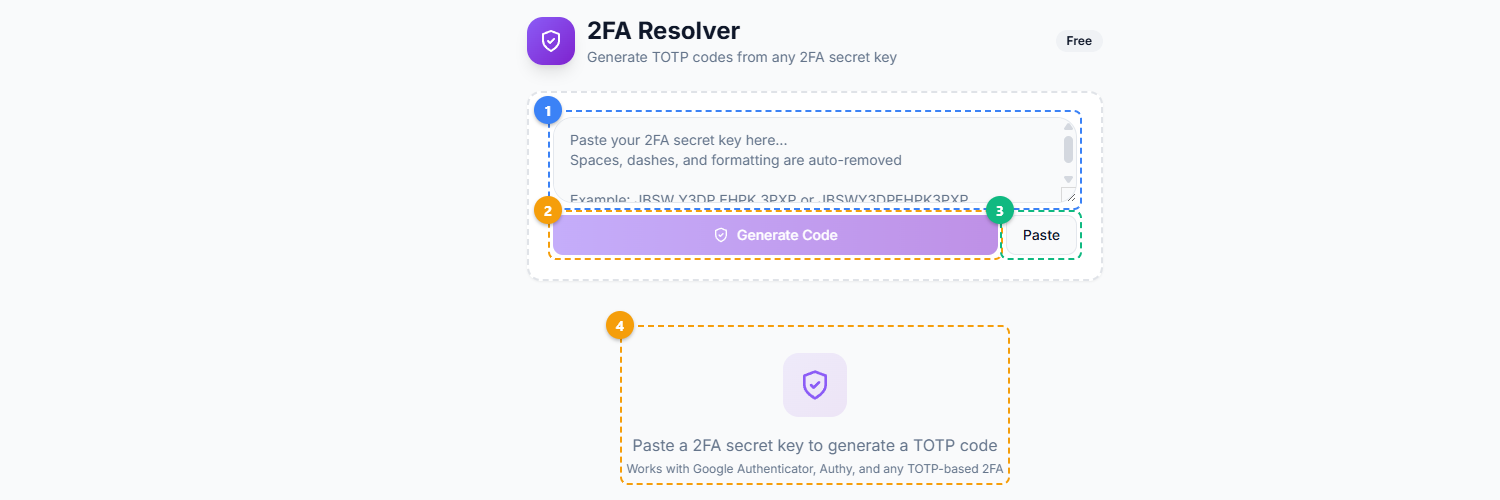
The 2FA Resolver provides a simple code generation interface. Paste your 2FA secret key into the text area — spaces, dashes, and formatting are auto-removed (1), click Generate Code to produce the current TOTP code (2), or use the Paste button to quickly insert a key from your clipboard (3). The generated six-digit code appears in the output area below with a countdown timer (4).
How to Set Up 2FA Resolver — Step by Step#
Step 1: Locate Your 2FA Secret Key#
When you initially set up 2FA on a social media account, the platform shows a QR code and usually offers a "Can't scan? Enter manually" option that reveals the secret key as a text string. This is the key you need.
If you already set up 2FA and did not save the secret key, most platforms allow you to disable and re-enable 2FA, which generates a new secret key you can capture.
Step 2: Open 2FA Resolver#
Navigate to the FaceBot dashboard and open 2FA Resolver from the Utilities section.
Step 3: Add Your Account#
Click to add a new account entry. Enter a label (e.g., "Instagram - @mybrand"), select the platform, and paste the secret key. The tool validates the key format and immediately begins generating codes.
Step 4: Verify the Code Works#
Before relying on 2FA Resolver as your primary code source, verify that its generated code works. Log into the social media account, reach the 2FA prompt, and enter the code shown in 2FA Resolver. If it accepts the code, the setup is confirmed correct.
Step 5: Use Codes as Needed#
Whenever you need a 2FA code for a stored account, open 2FA Resolver, find the account, and copy the current code. The countdown timer shows how many seconds remain before the code rotates — if less than five seconds remain, wait for the next code to avoid a timing-related rejection.
Security Considerations#
Storing 2FA secret keys in any tool introduces security considerations that you should understand and evaluate.
The Tradeoff#
Standard security advice says to keep 2FA codes on a separate physical device (your phone) so that compromising your computer alone is not sufficient to access your accounts. 2FA Resolver trades some of that separation for operational convenience. This is a legitimate tradeoff that many professionals make, but it is a tradeoff, not a free improvement.
When This Tradeoff Makes Sense#
If you are managing 10 or more accounts and authenticating multiple times per day, the convenience gain is substantial and the incremental risk is manageable — especially if your dashboard access is itself protected by strong authentication.
If you have a single personal account with 2FA, keeping the code on your phone is simpler and maintains the security separation. 2FA Resolver is designed for the multi-account management scenario, not as a replacement for a personal authenticator app.
Best Practices#
Protect your FaceBot dashboard access. Since 2FA Resolver stores keys that protect your social accounts, your dashboard login becomes the outer security perimeter. Use a strong, unique password for your FaceBot account.
Keep backup codes separately. Even with 2FA Resolver, save each platform's backup/recovery codes in a secure offline location (encrypted file, physical printout in a locked drawer). If you ever lose access to both your authenticator app and 2FA Resolver, backup codes are your last resort.
Audit stored keys periodically. Remove secret keys for accounts you no longer manage. Old keys for deactivated accounts are unnecessary stored secrets.
Do not share secret keys via insecure channels. If onboarding a team member, add the key to 2FA Resolver directly rather than sending it over email, Slack, or text messages where it could be intercepted or logged.
🚀 Ready to try 2FA Resolver?
Manage all your 2FA codes in one place
Try it Free →Practical Tips#
Add accounts proactively, not reactively. Set up all your managed accounts in 2FA Resolver during a dedicated session rather than adding them one by one as you hit 2FA prompts. This ensures you are never stuck waiting for a code during a time-sensitive task.
Label accounts clearly. Use a consistent naming convention like "Platform - @handle" or "Platform - Client Name" so you can find the right code instantly when a login prompt appears.
Check the countdown timer before copying. If the timer shows three seconds remaining, wait for the next code. Entering a code that is about to expire risks a rejection that might trigger a rate limit or lockout on the platform side.
Use 2FA Resolver alongside FaceBot's session management. Frequent re-authentication disrupts workflow. Combine 2FA code access with proper session management to minimize how often you need to re-enter codes.
Try 2FA Resolver#
Managing 2FA codes across multiple social media accounts does not have to mean juggling authenticator apps. 2FA Resolver is available in the FaceBot dashboard.
If you manage multiple Facebook Pages alongside your social accounts, see the complete guide to Facebook page management for tips on streamlining multi-account workflows.
Frequently Asked Questions#
Is 2FA Resolver compatible with all social media platforms?#
2FA Resolver works with any platform that uses the standard TOTP (RFC 6238) algorithm for two-factor authentication. This includes Facebook, Instagram, Twitter/X, TikTok, LinkedIn, YouTube/Google, Pinterest, Snapchat, and virtually every other major service. If the platform shows a QR code or secret key when enabling 2FA, it uses TOTP, and 2FA Resolver will generate valid codes for it.
What happens if I lose my 2FA secret key?#
If you did not save the secret key and no longer have access to the authenticator app that originally stored it, you will need to go through the platform's account recovery process — which typically involves identity verification and may take days. This is why saving the secret key when you first enable 2FA is critical. 2FA Resolver stores the keys you provide, but it cannot recover keys you never saved.
Is it safe to store 2FA keys in a browser-based tool?#
This is a legitimate security consideration. Storing 2FA keys in a browser-based tool means that anyone with access to your dashboard session can generate codes for your accounts. The security depends on how well you protect your dashboard access. For multi-account managers who authenticate dozens of times daily, the convenience is significant and the risk is manageable with strong dashboard credentials. For a single personal account, keeping 2FA on a separate device (your phone) maintains better security separation.
Can I use 2FA Resolver and a phone authenticator app simultaneously?#
Yes. The same secret key can be stored in multiple TOTP-compliant applications simultaneously, and all of them will generate the same valid code at any given moment. You can keep your keys in both Google Authenticator on your phone and 2FA Resolver on your dashboard. This is actually a good practice — it provides redundancy in case one access method becomes unavailable.
Does the tool support authentication methods other than TOTP?#
2FA Resolver is specifically designed for TOTP (time-based) codes — the six-digit codes that rotate every 30 seconds. It does not handle SMS-based 2FA (text message codes), push notification approvals, hardware security keys (FIDO2/WebAuthn), or platform-specific verification methods like Facebook's Code Generator. However, TOTP is by far the most common 2FA method across social media platforms.
Conclusion#
2FA Resolver addresses the operational friction of managing two-factor authentication across multiple social media accounts. It does not replace the security principle behind 2FA — it makes the day-to-day practice of using 2FA across many accounts faster and less error-prone. For solo managers, agencies, and teams who authenticate into numerous accounts daily, having every TOTP code accessible in the same dashboard where they do their work removes a persistent source of slowdown. The tool is straightforward — store your keys, get your codes — and that simplicity is exactly the point.