What Is Bulk Image Downloader? Save Albums & Photo Sets in 2026
Right-clicking and saving images one at a time works when you need three photos. It fails completely when you need three hundred. Facebook albums routinely hold 500 to 1,000 images. Instagram profiles accumulate years of posts, each potentially a carousel with ten images inside. Pinterest boards grow into collections of hundreds of reference pins. Manually saving any of these collections is not just slow — it is practically impossible at scale. A bulk image downloader solves this directly: point it at an album, a profile, or a board, and every image in that collection downloads automatically, at original resolution, organized and ready to use. FaceBot's Bulk Image Downloader does exactly that across the four major visual platforms.
What Is Bulk Image Downloader?#
A Bulk Image Downloader is a tool that scans a social media album, profile, board, or collection — and retrieves every photo in that source automatically, without requiring you to interact with each image individually. You provide the source URL. The tool identifies every image, queues them for download, and delivers them organized by album or source.
FaceBot's Bulk Image Downloader is browser-based. No desktop software, no OS-specific installation — it runs from the dashboard at fb0t.com/securebot and handles the heavy lifting server-side before delivering files to you.
This tool is purpose-built for photos and static images — distinct from the Bulk Video Downloader, which handles video queues and playlist-level batch jobs. Images have their own set of requirements: format conversion (WebP to JPEG is a common friction point), EXIF metadata preservation, resolution integrity across compressed thumbnails and full-size originals, and folder organization that mirrors album or board structure. Bulk Image Downloader handles all of these.
Key capabilities:
- Download entire Facebook photo albums in one click — albums with 1,000+ images queue and download as a single batch
- Save all images from Instagram profiles — includes individual posts, carousel posts (all slides), and highlighted stories
- Grab full Pinterest boards — hundreds of pins downloaded at original pin resolution
- Supports JPEG, PNG, and WebP — automatically converts WebP images to JPEG or PNG so files are immediately compatible with design tools, CMS platforms, and standard image editors
- Preserves original resolution — images are pulled at full size, not the compressed thumbnails platforms serve for web display
- Downloads image metadata — EXIF data, captions, and original timestamps are preserved where the platform makes them available
- Queue management for large batches — 500+ images run in parallel threads; failures auto-retry without interrupting the rest of the queue
- Organized output — files are sorted into folders named by album, board, or profile, not dumped as a flat list
Why Use a Bulk Image Downloader in 2026?#
The need for bulk photo downloading has grown as social platforms have become primary repositories for image libraries — personal, commercial, and archival. Six concrete reasons drive most use cases.
-
Save entire photo albums without repetitive manual effort. Facebook albums can hold 1,000+ photos from a single event or campaign. Clicking "Save Image" on each one — accounting for loading time between each click — would take hours. A bulk image downloader compresses that to minutes.
-
Archive before deletion. Pages, groups, and accounts get deleted with little warning — by the platform or by the owner. Bulk downloading preserves every image in a collection before the source disappears. This is especially critical for brands archiving campaign assets and researchers preserving documentation. Our complete guide to downloading social media content covers archival workflows in detail.
-
Build design inspiration boards offline. Designers frequently pull reference images from Pinterest boards for mood boards, client presentations, and style guides. Downloading an entire board at once — rather than saving pins individually — means the full reference library is available offline, in a folder, without depending on platform availability.
-
E-commerce product and competitor research. Product image analysis requires having local copies of the images — to examine composition, lighting, color grading, and formatting. Bulk downloading a competitor's product gallery or catalog board makes this analysis possible without visiting the platform repeatedly.
-
Collect event photography from social media. Weddings, conferences, brand activations, and product launches generate hundreds of tagged and shared photos across multiple posts and albums. Gathering all of them manually is impractical. A bulk image downloader pulls the full event image set in a single session.
-
Content migration between platforms. Moving an image library from Facebook to a new website, from Instagram to a portfolio tool, or from Pinterest to a local backup requires having all the files locally first. Bulk downloading is the prerequisite step for any platform migration.
What Platforms and Content Types Are Supported?#
FaceBot's Bulk Image Downloader covers the four major platforms where photo libraries accumulate. Support varies by content type:
| Platform | Albums | Profiles | Stories | Boards / Collections | Max per Batch |
|---|---|---|---|---|---|
| Yes | Yes | Yes | N/A | 1,000+ | |
| Yes (carousel) | Yes | Yes | Yes (Saved Collections) | 500+ | |
| N/A | Yes | N/A | Yes (full boards) | 1,000+ | |
| Twitter/X | Yes (media tab) | Yes | N/A | N/A | 500+ |
For Facebook, the tool handles standard photo albums, profile photo libraries, and cover photo histories. For Instagram, it covers individual image posts, multi-image carousel posts (downloading all slides, not just the first), profile grids, and story highlights. For Pinterest, it targets full boards — scanning every pin in a board rather than stopping at the visible viewport. For Twitter/X, it pulls the media tab, which aggregates all images a profile has ever posted.
Formats supported: JPEG, PNG, and WebP. WebP images — increasingly common on modern platforms as they serve compressed versions for bandwidth efficiency — are automatically converted to JPEG or PNG on download, so the files you receive are immediately usable in standard workflows without a separate conversion step.
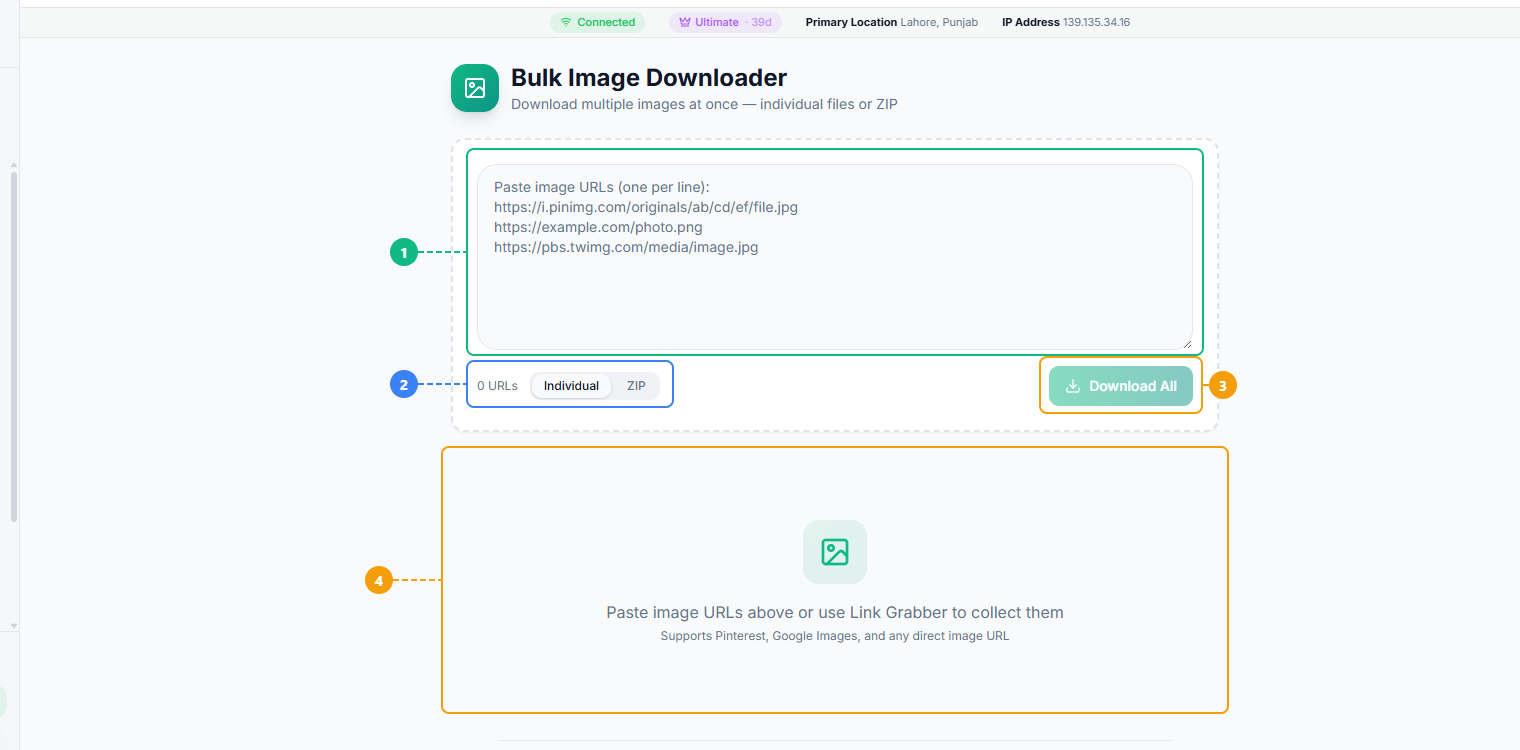
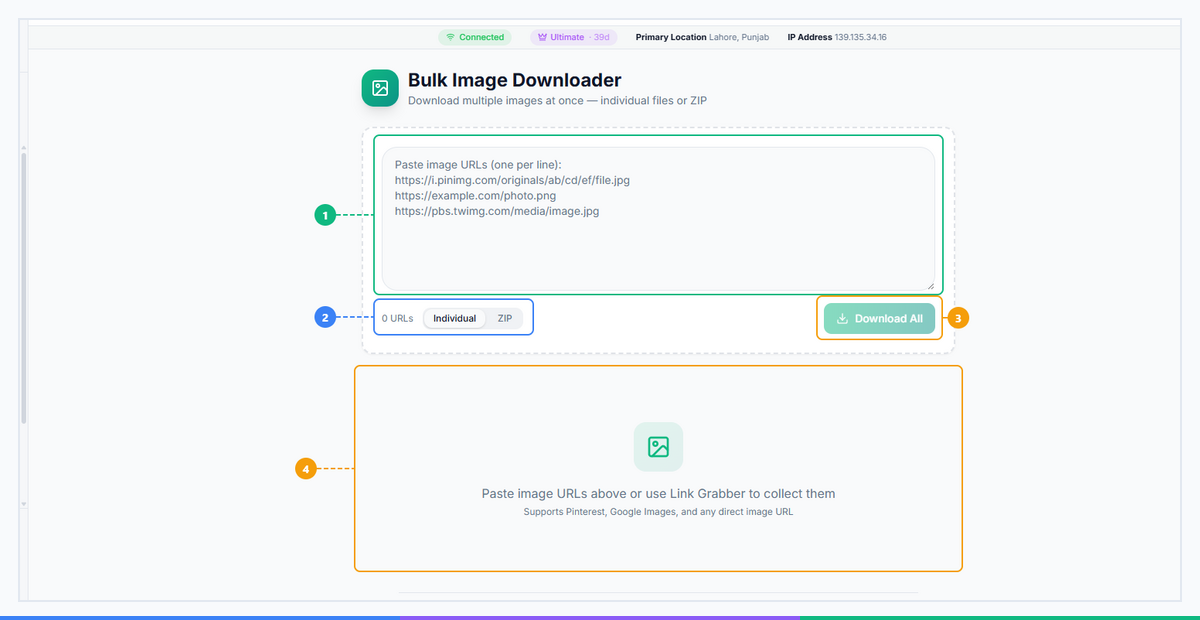
The Bulk Image Downloader provides a batch-optimized interface. Paste multiple image URLs or album links into the input area (1), configure download settings including format conversion and resolution preferences (2), click the Download button to queue the entire batch (3), and track progress with per-image status updates in the results area (4).
How Bulk Image Downloader Works#
The download process follows five steps from source selection to organized local files.
Step 1: Select Your Source#
Open Bulk Image Downloader from the FaceBot dashboard. Choose the platform — Facebook, Instagram, Pinterest, or Twitter/X — then paste the URL of the album, board, profile, or collection you want to download. The tool accepts direct album URLs, profile URLs (which then scan for all available image content), and board URLs.
Step 2: Scan Available Images#
The tool scans the source and returns a preview grid showing every available image — thumbnails, total image count, and an estimated total file size for the batch. Scanning a 500-image Facebook album typically completes in under 30 seconds.
Step 3: Filter and Select#
Before downloading, you can narrow the batch using filters:
- Date range — limit downloads to images uploaded within a specific period
- Minimum resolution — exclude low-resolution thumbnails or reposts of compressed images
- File type — select only JPEG, only PNG, or all formats
Select all images, or use the grid to deselect specific images you don't need. The batch total updates in real time as you adjust the selection.
Try the full filtering and preview workflow now:
Step 4: Download#
Initiate the download. The tool runs parallel download threads — multiple images download simultaneously rather than sequentially. A progress bar tracks completion per image and for the overall batch. Images that fail on the first attempt (due to temporary network issues or platform rate limits) auto-retry up to three times before being flagged for manual review.
For large batches (500+ images), the parallel architecture means total download time scales primarily with your connection speed rather than the number of images.
Step 5: Review Downloaded Files#
When the batch completes, files are organized into folders named after the source: the album name, board name, or profile handle. Images retain their original filenames where the platform provides them, or are given sequential numbered names where filenames are not available. EXIF metadata and captions are preserved in the file properties for supported formats.
Bulk Image Downloader vs. Manual Saving#
Manual right-click saving is the baseline most people start with. The gap between that approach and a dedicated bulk tool widens quickly as image counts increase.
| Feature | Bulk Image Downloader | Manual Right-Click Save |
|---|---|---|
| Time for 100 images | ~2 minutes | ~45 minutes |
| Original quality preserved | Always | Often compressed — browsers frequently cache lower-resolution display versions |
| WebP handling | Auto-converts to JPEG/PNG | Saves as .webp — incompatible with many editors and CMS platforms without conversion |
| Metadata preserved | Yes (EXIF, captions, dates) | Usually stripped during browser save |
| Album structure | Maintains folder organization by source | Flat file dump to Downloads folder |
| Batch size | 1,000+ images per session | One image at a time |
| Failed downloads | Auto-detected and auto-retried | Silently missed — you won't know what you skipped |
The metadata difference is particularly important for professional workflows. EXIF data carries camera settings, geolocation, and timestamp information. Captions and descriptions carry context that is lost when you save a raw image file without its associated metadata. Bulk Image Downloader captures both where the platform exposes them — manual saving strips them entirely.
The WebP issue is a practical problem that often surfaces only after the download session is complete. Platforms increasingly serve WebP versions of images for bandwidth efficiency. A browser saving the displayed image captures the WebP version. Many design tools, CMS platforms, and image editors do not handle WebP natively. Bulk Image Downloader converts on download, so the WebP problem never reaches your local file system.
Who Should Use Bulk Image Downloader?#
Photographers and visual designers use it to build reference libraries from Pinterest boards and Instagram profiles — mood boards, style references, and portfolio research that would otherwise require hours of manual curation. The Pinterest Downloader and Instagram Downloader cover platform-specific workflows for these use cases in more detail.
Social media managers and content teams use it to archive published content before account migrations, platform pivots, or content calendar resets. Losing a year's worth of published images because a platform account was deleted or suspended is a common, preventable problem.
E-commerce and marketing teams use it for competitive research — downloading product image sets from competitor profiles or industry boards for market analysis, without relying on platform interfaces that may change or restrict access.
Archivists and researchers use it to preserve social media documentation — event coverage, community photo collections, journalistic image sets — before platforms remove content or accounts go dark. The combination of metadata preservation and organized folder output means downloaded archives are immediately usable for reference and citation, not just raw storage.
How to Get Started#
Bulk Image Downloader is available on FaceBot's free tier with a daily download quota. Paid plans increase the daily limit and add priority queue processing for large batches. No browser extension installation is required beyond FaceBot's standard extension — the same one that powers the full suite of bulk downloading and profile-level batch tools across the platform.
Log in to FaceBot, navigate to Tools → Downloaders → Bulk Image Downloader, paste your first album or board URL, and run a scan. The preview grid shows you exactly what will be downloaded before you commit to the batch.
Frequently Asked Questions#
Does Bulk Image Downloader preserve original image quality? Yes. Images are downloaded at their source resolution — the full-size original, not the compressed display version the platform serves in the browser viewport. Platforms often cache lower-resolution versions for faster web loading; Bulk Image Downloader bypasses those caches and retrieves the original file.
What image formats are supported? JPEG, PNG, and WebP are all supported. WebP images — increasingly common on Facebook, Instagram, and Pinterest — are automatically converted to JPEG or PNG during download. You can specify which format to convert to in the settings before starting a batch.
Can it download images from private albums or private accounts? Bulk Image Downloader can access content that is visible to your logged-in account. Private albums shared with you, private profiles you follow on Instagram, and secret Pinterest boards you own are all accessible. Content that is not visible to your account — private profiles you do not follow, albums shared with specific people who do not include you — cannot be downloaded.
Is there a limit on how many images I can download per session? Batches can exceed 1,000 images in a single session. Daily download limits depend on your plan tier. Free accounts have a daily quota; paid plans provide higher limits and priority queue processing. The batch size itself is not artificially capped below what the source contains.
Is EXIF metadata and caption data preserved in downloaded files? Yes, where the platform makes it available. EXIF data (camera settings, timestamps, geolocation on mobile uploads) is preserved in the downloaded JPEG and PNG files. Captions and descriptions are saved as sidecar metadata where the format supports it. Not all platforms expose full EXIF data through their APIs — Pinterest, for example, provides less EXIF data than Facebook.
How is this different from Bulk Video Downloader? The Bulk Video Downloader is optimized for video content — handling video resolutions (480p, 720p, 1080p, 4K), audio tracks, subtitle files, and playlist-level batch jobs from YouTube, TikTok, and similar platforms. Bulk Image Downloader is purpose-built for static images — photo albums, profile grids, Pinterest boards — with image-specific features like WebP conversion, EXIF preservation, and resolution filtering. They are complementary tools, not interchangeable.#
Conclusion#
A bulk image downloader is the practical solution to one of the most common friction points in social media workflows — the gap between wanting an entire album, board, or profile's worth of images and being stuck saving them individually. FaceBot's Bulk Image Downloader closes that gap: scan the source, filter by date or resolution if needed, and download everything in a single session — original quality, WebP converted, metadata intact, files organized by album or board. Whether you're archiving a Facebook album, pulling a full Pinterest board for design reference, or collecting event photos from Instagram, the tool handles the volume so you don't have to. See the complete guide to downloading social media content for how Bulk Image Downloader fits into a broader content archival and research workflow.